Invite internal event staff
Open the avatar/account menu in the dashboard header, then Team. This page grants access to the private operator dashboard.
There are three separate lists:
| List | Purpose |
|---|---|
| Workspace Team — this page | Event operators with dashboard permissions. |
| Site Homepage → Team | Managers displayed publicly; no dashboard access is granted by that listing. |
| Creator portal → Managers | Assistants working for one designer profile. |
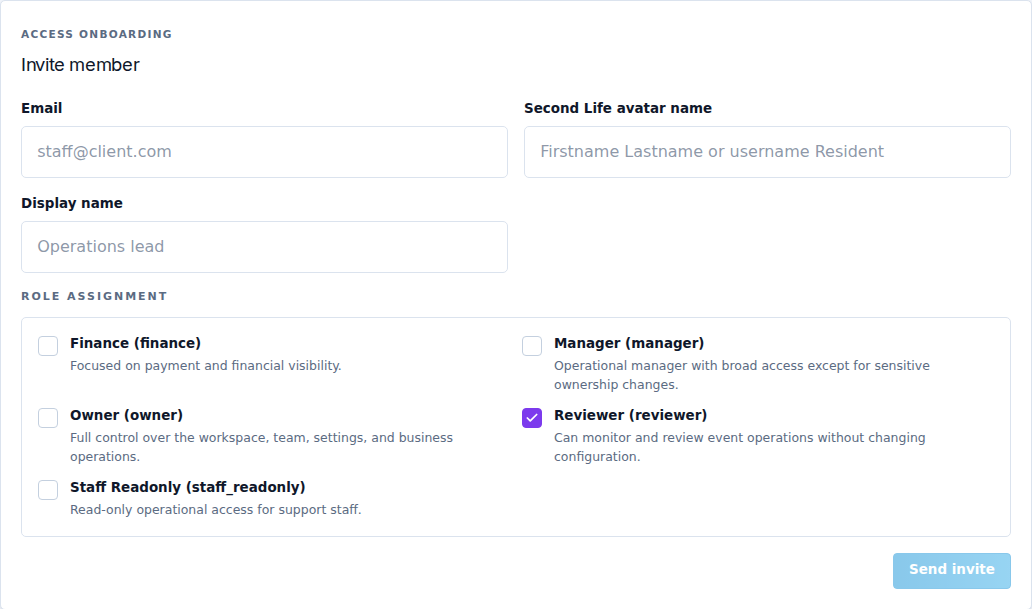
Invite a member
- Enter the person's Email, matching the account they will use.
- Add their Second Life avatar name and Display name where requested.
- Select at least one role appropriate to their work.
- Check the recipient, then select Send invite. This is a real invitation.
- The recipient follows the invitation and signs in with the correct CaveTech account. Confirm the membership becomes Active.
| Role | Intended use |
|---|---|
| Owner | Full control, including team, settings and business operations. Assign with care. |
| Manager | Broad event operations, with ownership-sensitive restrictions. |
| Reviewer | Monitors and reviews event operations without changing configuration. |
| Finance | Payment and financial visibility. |
| Staff Readonly | Read-only operational access for support. |
Read the role descriptions in your workspace before assigning them. Multiple assigned roles combine their permissions; removing one role does not remove a permission still granted by another.
Maintain memberships
Use Status (All, Invited, Active or Suspended), Role, and Search to find members. The roster shows roles, status and invitation/acceptance dates.
Edit member opens Display name, Membership status and role choices. Select Save member. Use Suspend member, Activate member or Remove member only when you intend to change access. Owner memberships have protective restrictions, shown as Owner protected.
If an invited person cannot enter, check the email/account, membership state and roles. If they can enter but a button is absent, check the relevant permission instead of sharing the owner's password.