Read the Discord delivery log
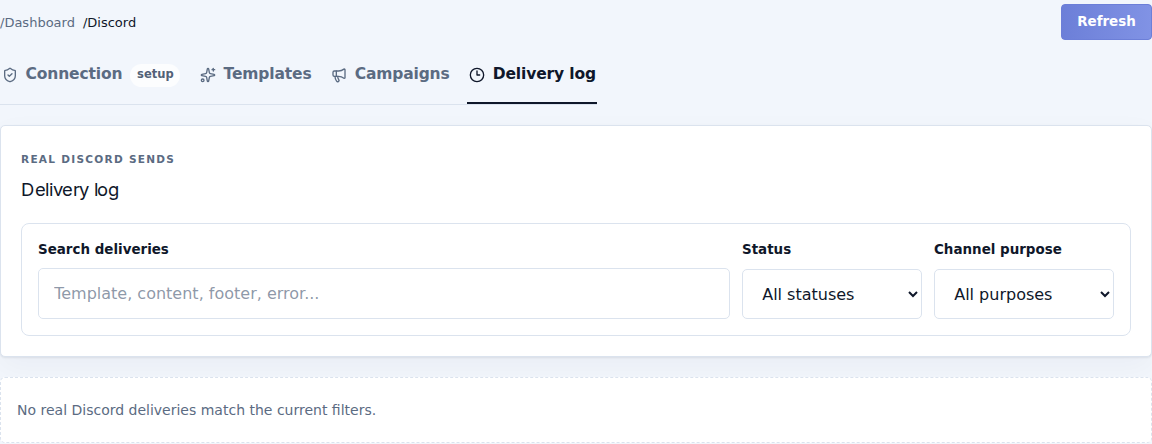
Open Discord → Delivery log. This page reports actual delivery attempts, separate from the template preview and campaign setup.
| Filter | Use |
|---|---|
| Search deliveries | Locates relevant messages/records in the log. |
| Status | All statuses, Delivered, Queued, Processing, Failed, Partial failure or Cancelled. |
| Channel purpose | All purposes, announcements, submissions, payments or marketing. |
| Refresh | Reloads the current results. |
Understand a result
- Queued / Processing: work is waiting or in progress; it is not confirmed delivered yet.
- Delivered: the send was recorded as delivered. Check the actual channel when verifying a new setup.
- Failed: read the error and check the connection, channel access and template.
- Partial failure: part of the work failed. Inspect the details before repeating anything already delivered.
- Cancelled: the work was cancelled; do not count it as a successful post.
An empty log means no matching recorded delivery, not necessarily that the connection is broken. Clear filters, confirm the correct workspace and check whether any real send was scheduled or tested.
Before retrying, identify what reached Discord. Include the record/time, purpose, channel and error in a support request. Do not send bot credentials.