Connect Discord and choose channels
Open Discord → Connection. You need access to the Discord server and permission to authorize/manage the integration there. Connecting Discord is optional for running applications, payments and galleries.
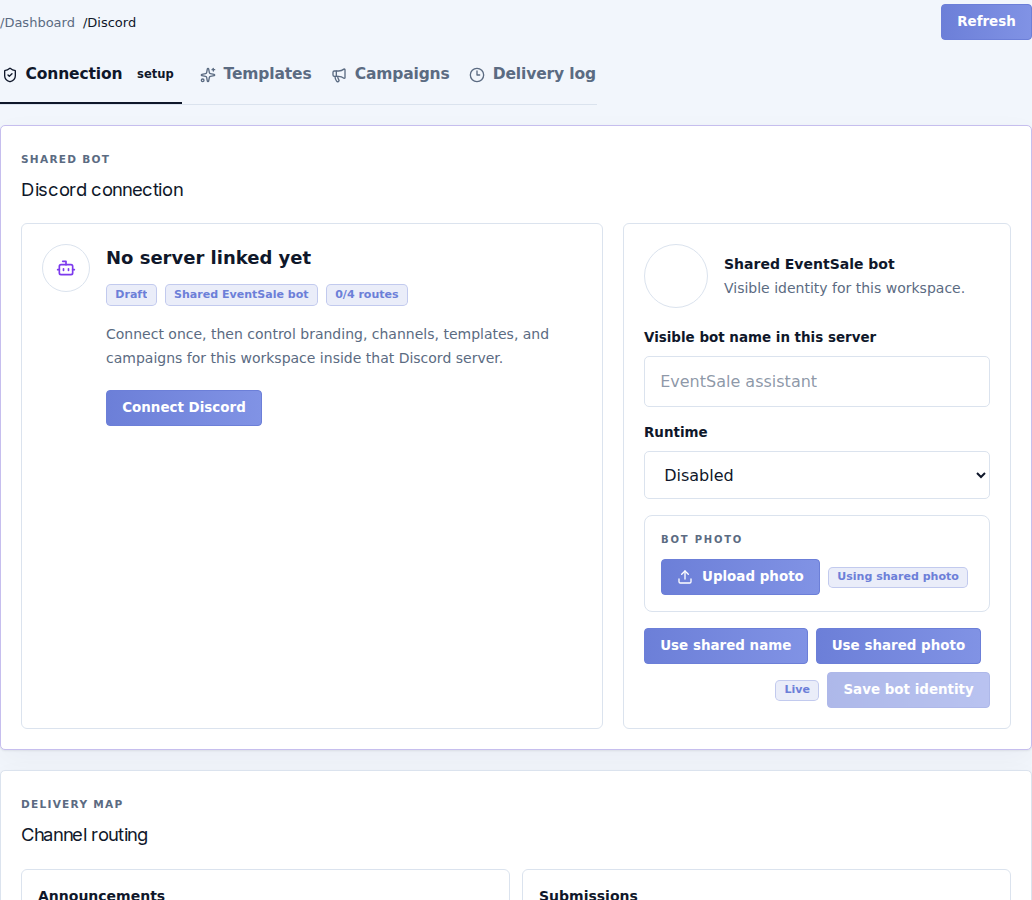
Connect and identify the bot
Select Connect Discord, follow the authorization flow, choose the intended server and return to EventSale. Check the resulting connection state. If connection is unavailable or configuration is missing, contact CaveTech instead of entering a bot token into another field.
| Field or control | Meaning |
|---|---|
| Visible bot name | Name used for the bot's identity in this workspace/server where supported. |
| Runtime | Enabled allows sending; Disabled pauses the integration's runtime. |
| Bot photo | Workspace bot image, where available. |
| Use shared name / photo | Uses the shared identity instead of your overrides. |
| Save bot identity | Saves those identity choices. |
Map the four routes
A route is a purpose mapped to a Discord channel. The current routes are announcements, submissions, payments, and marketing.
For each route, set:
| Field or action | What to do |
|---|---|
| Channel | Choose the actual destination channel in the connected server. |
| State | Enable only the routes you intend to use. |
| Default layout | Select the message template appropriate to this route. |
| Preview layout | Inspect the message before sending. |
| Save route | Stores the route configuration. |
| Save & test | Saves and sends a real test message to that channel. |
If no channel is available, check the connected server and bot permissions. Confirm that the bot can see and send to the intended channel. Do not select a similarly named channel without checking where it belongs.
Verify the result
Use one controlled test after mapping the route. Check the actual Discord channel and Delivery log. Then enable the desired scheduled campaigns or event reminders in Operations settings.
A connected server alone does not configure every route or enable every campaign. Identity changes also do not edit messages already delivered.