Payments: receipts and terminals
Open Payments to inspect designer round fees and manage your event's payment terminals. For the CaveTech share of those fees, use Billing.
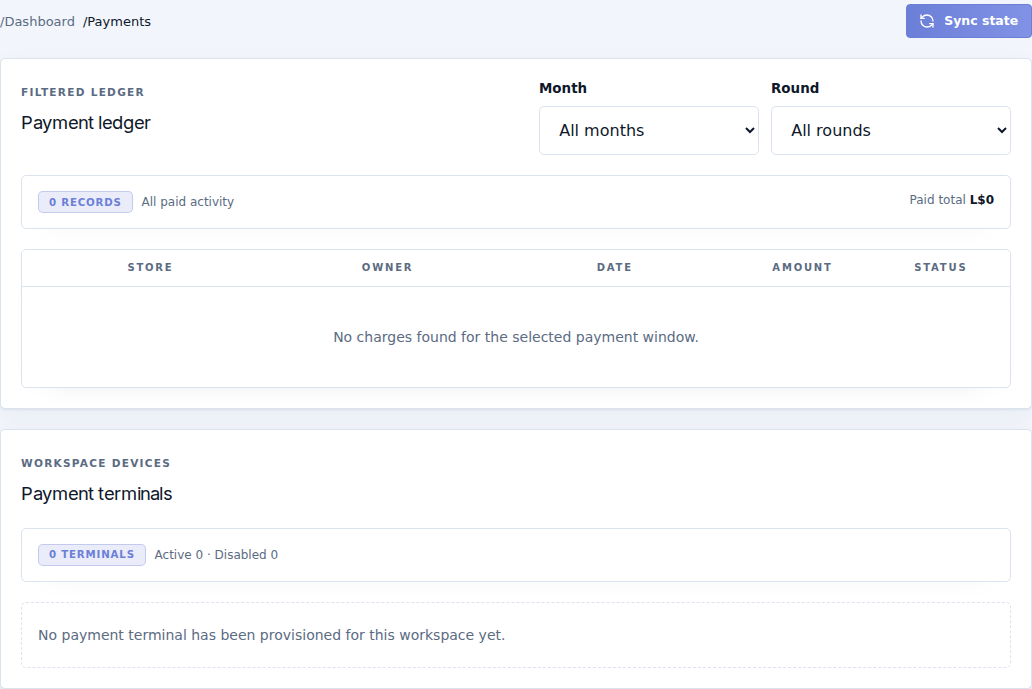
Read the ledger
| Field or column | Meaning |
|---|---|
| Month | Filters the period. Select All months to widen the search. |
| Round | Filters one event edition. Select All rounds when locating an older payment. |
| Store / Owner | The designer and store associated with the charge. Check the beneficiary if a manager paid. |
| Date / Amount / Status | When and how much was recorded, and the charge's current state. |
| Paid total | Total for the currently filtered window. Changing filters changes this number. |
Paid, Pending, and Exempt are different states. An exemption is a deliberate fee waiver, not a received payment. A designer's successful payment and the terminal's commission settlement also have separate records.
Check the terminal
The Payment terminals section shows registered devices, active/disabled state and location information. Check the object name and map link against the object actually rezzed in Second Life.
- Active permits a terminal to participate when the round and device are eligible.
- Disabled retains the registration but prevents normal use for collection.
- Sync state asks registered terminals to receive the latest state. Read delivered, failed or stale/skipped results; the button cannot bring a deleted object back online.
Disable a retired device once you have confirmed its identity. If it has an unresolved payment or commission, resolve that first with support before deleting the object or its stored data.
What a designer does
- Touch the terminal and wait for the status response.
- If acting for several brands, select the intended designer/brand.
- Read the round and exact amount, then use Pay once.
- Keep the receipt shown in chat.
- Check the creator portal's payment state.
The owner accepts debit permission once when setting up the current package. The terminal uses it for applicable refunds and commission; designers do not grant permission to debit their own accounts by touching it.
When a payment looks wrong
Check the correct month and round, amount, payer/beneficiary and receipt. No payment is due normally means there is no payable charge for that selected profile/round; it is not a reason to send money manually.
If L$ were taken but confirmation is unclear, do not pay again. Preserve the terminal, its data and the receipt, then follow payment troubleshooting. Staff must not treat deleting an application as a way to refund or reset a payment.