Build and publish the homepage
Open Site Homepage → Layout. The page has a block palette, a page preview, and an Inspector for the selected block. Select a block in the preview to edit its controls.
Save a draft, then publish
The homepage saves draft changes automatically. Wait for the saving indicator to finish before leaving the page. Preview checks the draft; Publish homepage makes the draft public. There is no separate “Save draft” button in the current editor.
Start by editing the existing blocks. Drag blocks to reorder them. Use Duplicate only when you want another copy, and Remove only for a section you intend to remove. Restore defaults replaces the current layout with the default arrangement; it is not an undo button for one field.
Shared block controls
Enabled controls whether a block appears publicly. Where shown, Title and Description identify or introduce the block; use the visible preview to distinguish those from a block's additional heading or body text. A hidden block can still retain its draft content.
Header
| Control | Result |
|---|---|
| Stick header to top | Keeps navigation visible while scrolling. |
| Show logo / Show brand name / Show slogan | Chooses which identity elements appear. The logo and brand come from Settings → Brand. |
| Slogan text | Optional short line in the header. |
| Home / Current rounds / Past rounds / Team labels | Public navigation wording. Keep each label short enough for phones. |
| Apply / Login labels | Wording for the application and creator login links. |
| Show Apply / Show login | Shows those links; does not enable the underlying service. |
| Apply as button / Login as button | Styles the corresponding link as a button. |
Check public-access switches too: a visible Apply button can still lead to closed applications.
Hero — “Tenant portal”
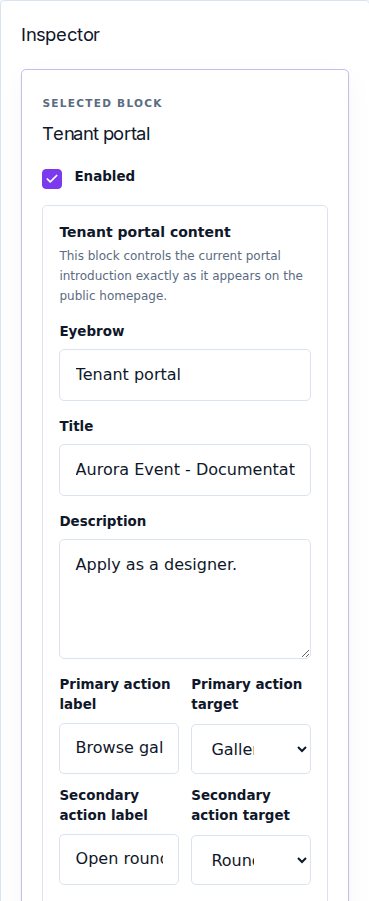
The hero is the opening introduction. Set Eyebrow, Title, and Description in your event's voice. Set Primary action label and Primary action target, then Secondary action label and Secondary action target. Available targets are: Apply, Creator login, Gallery, Rounds, or Stores.
Upload the hero images and set Autoplay interval (seconds) from 1–30. Each image can have a Destination URL and Open in a new tab. A blank destination means there is no linked destination to open. Use image preview, replace and remove controls to manage the images; respect the capacity shown by the image counter.
Photo gallery
Upload the homepage photos, set the Autoplay interval (1–30 seconds), and edit each image's Destination URL and Open in a new tab. The current editor permits up to five images in this block. This is a homepage photo strip, separate from the round's product gallery.
Partners ticker
| Control | Meaning |
|---|---|
| Items content | Choose Logo or Text for the moving partner strip. |
| Speed (s) | Animation cycle duration, 6–120 seconds. A larger value produces a slower cycle. |
| Gap (px) | Space between entries, 12–96 px. |
| Logo size (px) | Logo display size, 24–96 px. |
| Pause on hover | Pauses when a visitor points at the strip. |
| Edge fade | Softens the strip's edges. |
| Active in the public ticker | Includes or hides one partner entry. |
| URL | Optional destination for that partner. Test it before publishing. |
Add the actual partner text or logo using the selected content mode. Do not leave the package's example partners in a published event page.
FAQ
Set Eyebrow, Section heading, and Section description. For each entry, fill Question and Answer, then select Show publicly if it should be visible. Use the FAQ for concrete questions: participation fee, dates, image rules, and how to contact your team.
Previous rounds and current products
- Previous Rounds Gallery: set Limit from 1–9 and the Button label. It displays available published round galleries; adding the block does not create those galleries.
- Gallery items / Current round: choose Enable product preview modal and Show round label on cards. The content comes from the round's gallery.
Final check
- Wait for draft saving to finish.
- Open Preview and check the page on a narrow screen.
- Check every action label and destination, including image and partner links.
- Select Publish homepage.
- Open the public site in a private window and confirm the published version.
If products or previous rounds are missing, inspect Galleries. Publishing a homepage does not publish a draft gallery.