Recover a password
Start on the login page for the account you need to recover. The owner's CaveTech password and a designer's password for one event are separate.
| Account | Where to start |
|---|---|
| Event owner or internal staff | CaveTech login, then its password recovery option. Follow the recovery method shown there. |
| Designer or designer's manager | The specific event's Creator login → Forgot your password?. Follow the steps below. |
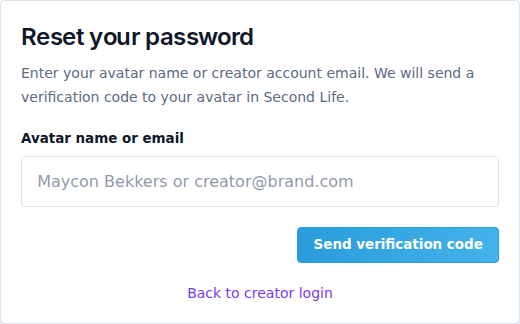
Recover a creator or manager password
- Open the correct event's public website and select Creator login.
- Select Forgot your password? and enter the email address or avatar name used for that event.
- Submit the request. The page gives a neutral response; it does not disclose whether another person's account exists.
- Log in to the matching Second Life avatar. The event's CaveTech - Server delivers the recovery instructions in-world.
- Open the supplied recovery link and enter the code as instructed. Use the latest code; a recovery code expires after 15 minutes and can be used once.
- Enter and confirm a new password. Creator passwords require at least 8 characters, one uppercase letter, and one special character. Follow any additional rejection message shown by the form.
- Complete the reset, return to this event's login page, and sign in again. Existing sessions for that credential are revoked.
If the message does not arrive
Check the avatar name, the event address, and your in-world chat and instant messages. Ask the event owner to check the Verification server in Settings → Operations. The payment terminal and marketing Sender do not replace this Server.
A code for one event cannot reset an account in another event. If a code expires or too many attempts are rejected, wait as instructed and start a new request. Do not reuse an old link repeatedly.
Imported designers who have never created a password should use the first-access option on the creator login page instead of resetting a password that does not yet exist. See imported creator activation.
For support, send the event name, avatar username, time, and exact error message. Keep passwords, codes and recovery links private.