Brand: name, address and images
Open Settings → Brand. Use this page for the event's public identity. Edit the homepage's text and section images in Site Homepage.
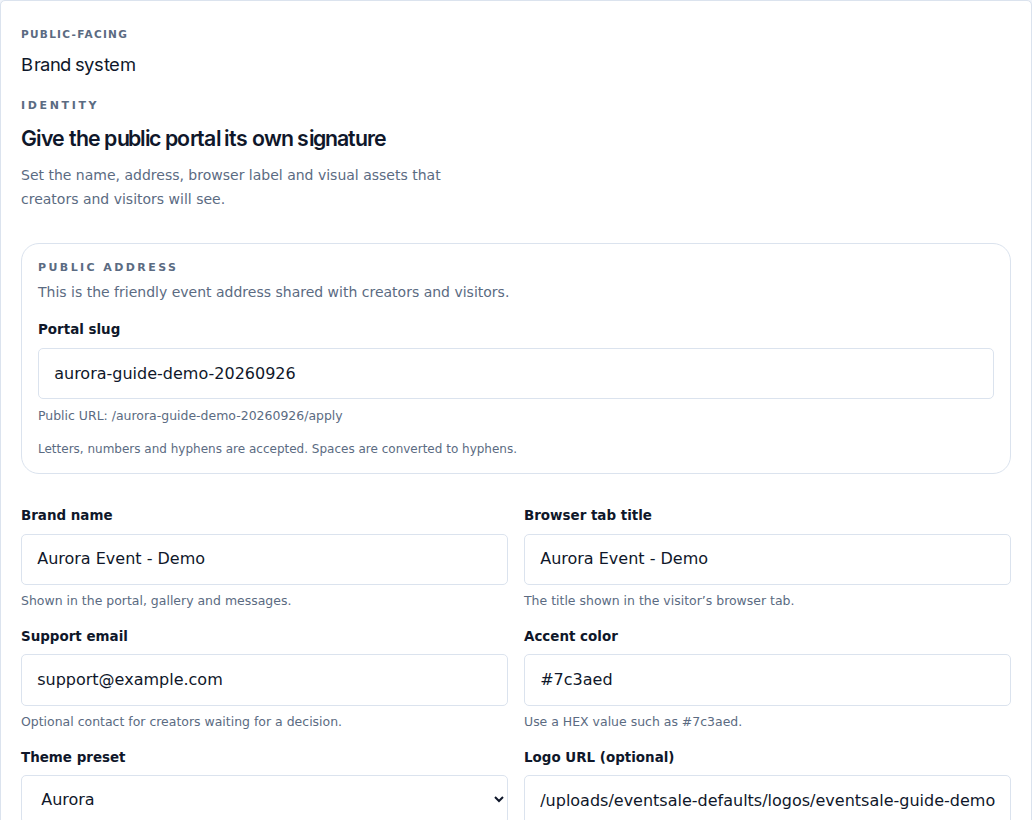
Fill in the fields
| Field | What to enter and what it changes |
|---|---|
| Portal slug | A short address, for example aurora-event. Use letters, numbers and hyphens; spaces become hyphens. Wait for the availability check. Copy the generated public link after saving. |
| Brand name | The name visitors recognize, for example Aurora Event. Used across the public portal, gallery and messages. |
| Browser tab title | A short recognizable title, up to 80 characters. This is the browser-tab text, not the homepage headline. |
| Support email | Optional monitored inbox for creator questions. Check the spelling before opening applications. |
| Accent color | A HEX color such as #7c3aed. Check that buttons and text remain readable with your choice. |
| Theme preset | Aurora, Sunrise, or Mono. Sets the public visual theme; your content and logo remain separate. |
| Logo URL (optional) | A public image URL. An address requiring your private login will not work for visitors. You can use the upload instead. |
| Upload logo | Image up to 1 MB; the interface recommends approximately 600 × 600 px. |
| Upload favicon | Browser-tab icon, up to 1 MB, in PNG, JPG/JPEG or ICO. Recommended size: 256 × 256 px. |
Use each asset's remove/clear control to replace an unwanted image. Keep an original copy on your computer. A favicon is tiny: prefer a simple symbol over a long event name.
Save and verify
- Select Save brand.
- Wait for the success message.
- Open the generated public address in a private browser window when public access is enabled.
- Check the name, browser title and images. A browser may cache its favicon; check in a new private window if the old icon remains.
Choose the slug before sharing links. Changing it later can invalidate previously distributed addresses. If the slug is unavailable, choose a distinct name; do not keep retrying the same value.
Saving Brand does not open applications or publish a homepage draft. Use Operations settings for public access, and Publish homepage for homepage changes.