Review a round submission
Open Submissions → Pending review. Choose the Round first, then use Search and Rows to find the designer. Reviewing an application accepts the designer; reviewing a submission accepts the content for this particular round.
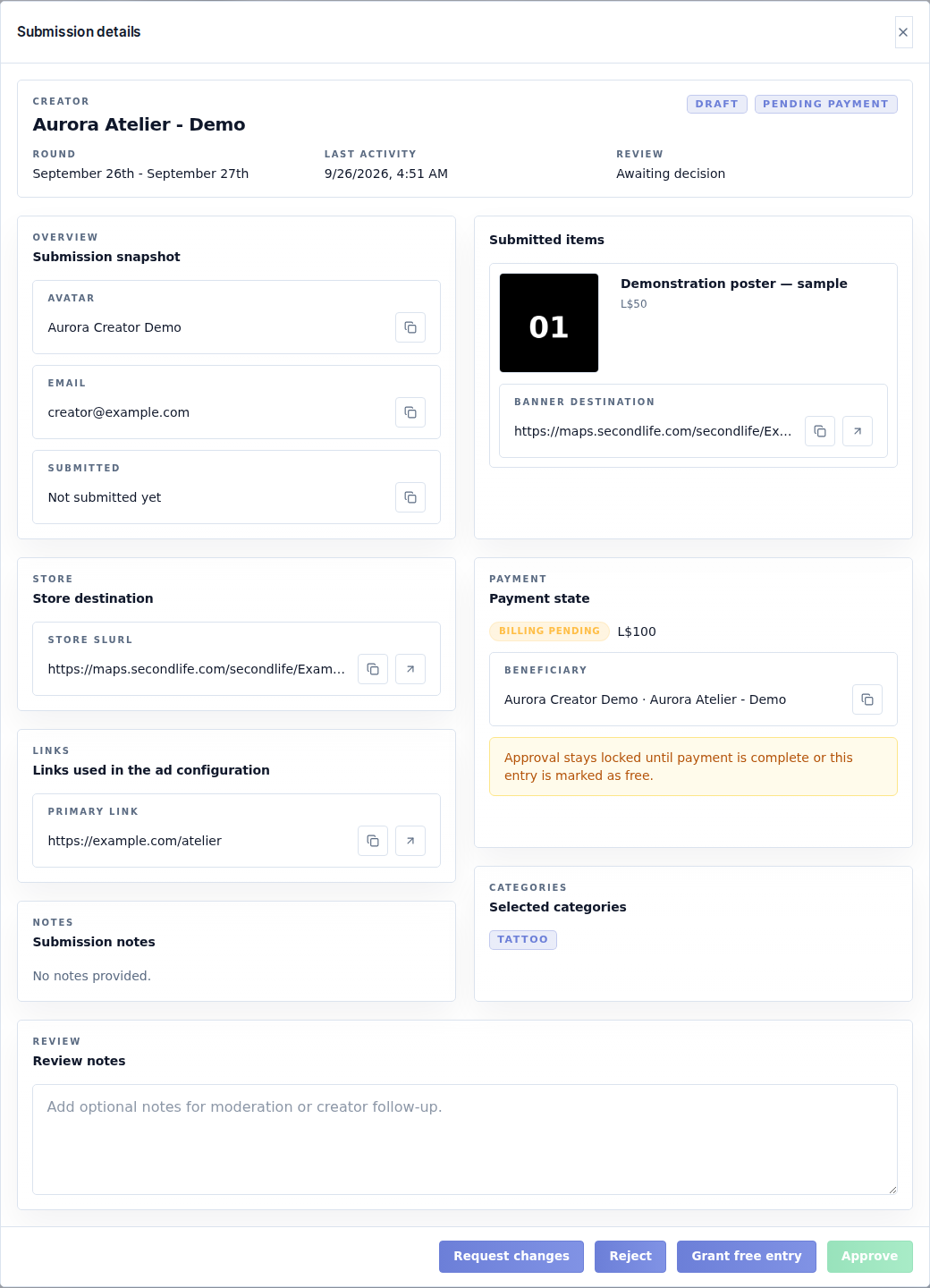
Inspect the details
Open the submission's details. Check:
- Submission snapshot: correct designer, avatar, email, round and submission time.
- Submitted items: product names, prices, images and product URLs. Open an image preview to inspect small text and cropping.
- Banner destination / Store destination: where visitors will go after clicking. Check store SLURL, Marketplace and primary/secondary links.
- Identity or store-change notices: compare the creator's changes with the profile you approved.
- Selected categories and Submission notes: ensure they match your event's rules.
- Payment state and Beneficiary: confirm whose fee was paid, especially when a manager paid on behalf of a designer.
Make a decision
| Action | When to use it |
|---|---|
| Request changes | The creator can correct the content. Write specific review notes first. The record moves to Needs fix. |
| Reject | This content cannot be accepted for the round. Enter the rejection notes, then use Confirm rejection. |
| Approve | Content is acceptable and the required billing state permits approval. |
| Grant free entry | You deliberately waive this submission's fee and have permission to manage payments. Confirm the exemption in its dialog. |
If Approve is disabled, read the displayed reason or hover explanation. A pending payment is not a reason to press the button repeatedly. Check the receipt, or grant free entry only when the event intentionally offers it.
Revert free entry changes an exemption back to pending payment and can block approval again. It is not a refund action and should not be used to “reset” a paid test.
Write useful review notes
“Replace image 2: the price is cut off. Upload an image with the full L$ price visible” gives the creator a clear task. “Wrong image” does not. Treat review notes as creator-facing content.
After a decision succeeds, check the destination tab. Approval alone does not publish the gallery. Continue to Galleries when the round's approved content is ready.