Account Registration
EventSale uses the centralized CaveTech account system. Your CaveTech account is the account you use to open the private EventSale dashboard, manage your event, and access the other CaveTech products that have been activated for you.
Before you begin
Make sure you have:
- access to a web browser;
- your Second Life avatar name exactly as it appears in-world;
- access to Second Life so you can receive the verification message; and
- a valid email address that you check regularly.
The email is used for account recovery and important service notifications. Do not use the same password as your Second Life account.
Registration process
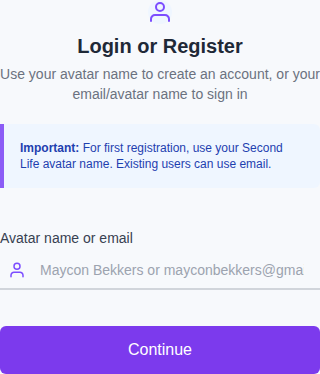
Step 1: Open the CaveTech registration page
You can start in either of these ways:
- Open the CaveTech website and select Connect.
- Or open the CaveTech login page directly.
The same account page is shared by EventSale and the other CaveTech products.
Step 2: Enter your avatar name
- Find the field labeled Avatar name or email.
- Enter your exact Second Life avatar name, including Resident when that is part of your avatar name. For example:
JohnDoe Resident. - Select Continue.
If you already have an account, you can enter your email address or avatar name and sign in instead of creating another account.
Step 3: Receive the verification code in Second Life
After you enter the avatar name, CaveTech sends a verification message to that avatar in Second Life.
Check local chat and your Second Life instant messages. The message contains a short verification code. Depending on the environment, the code may be displayed as six digits with a hyphen, such as 123-456.
If the message does not arrive, confirm that you are online, that the avatar name is spelled correctly, and that the CaveTech verification object is available for the EventSale workspace.
Step 4: Confirm the verification code
- Return to the browser.
- Enter the complete code exactly as it appears in Second Life.
- Select Verify Code.
The verification step connects the new account to the avatar that requested it. Do not share the code with another person.
Step 5: Add your email address
After the avatar is verified:
- Enter an email address that you can access.
- Select Continue.
This address is used for password recovery and important CaveTech notifications.
Step 6: Create your CaveTech password
Create a password that meets these requirements:
- at least 8 characters;
- at least one uppercase letter;
- at least one number; and
- at least one special character.
Enter the password again to confirm it, then select Complete Registration.
Security: Never reuse your Second Life password for CaveTech. Keep this password private and store it somewhere secure.
Step 7: Finish registration
After registration succeeds:
- CaveTech signs you in automatically.
- You are redirected to the CaveTech product dashboard.
- EventSale becomes available after its product activation is completed.
Step 8: Activate EventSale
To link EventSale to the account you just created:
- Open the CaveTech EventSale folder in your Second Life inventory.
- Find CaveTech EventSale Activator.
- Wear or attach the activator.
- Click it and follow the instructions shown in Second Life.
- Open the dashboard link provided after activation, or choose EventSale System from your CaveTech product dashboard.
EventSale is now connected to your CaveTech account. Continue with Initial Setup to configure the event, first round, public site, payment terminal, and verification object.
Common registration problems
The verification code did not arrive
- Confirm that you are online in Second Life.
- Check local chat and instant messages.
- Confirm the avatar name is spelled exactly as it appears in Second Life.
- Wait briefly and request a new code if the current code expires.
The avatar name is invalid
- Check the spelling and capitalization.
- Include
Residentwhen it is part of the avatar's full name. - Remove extra spaces before trying again.
The email address is already in use
That usually means the CaveTech account already exists. Return to the login page and sign in with the email or avatar name. If you no longer know the password, follow Password Recovery.
The password is rejected
Check that the password has at least eight characters, one uppercase letter, one number, and one special character. The password must also match the confirmation field.
Continue setting up EventSale
- Initial Setup — activate EventSale and prepare the event.
- Password Recovery — recover an EventSale portal password.
- Rounds — plan the event calendar and first round.