Create Discord message templates
Open Discord → Templates → New template. A template stores reusable wording and appearance. Saving it does not by itself send a message.
Identity and purpose
| Field | Meaning |
|---|---|
| Template type | Manual, Round status, Submission status, Payment status, Gallery status, or Marketing status. Choose the event/use the template represents. |
| Default channel | Route purpose: announcements, submissions, payments or marketing. The actual Discord channel is mapped in Connection. |
| Template name | A recognizable name for your operators. |
| Internal note | Explains when the team should use this template. |
| Preferred campaign recipe | Optional scheduling pattern preselected when starting a campaign from this template. It does not schedule a send by itself. |
Starter presets provide common announcements, payment notices, submission notices and marketing messages. Selecting a preset fills a starting configuration; inspect the resulting text, type and purpose before saving.
Message and card fields
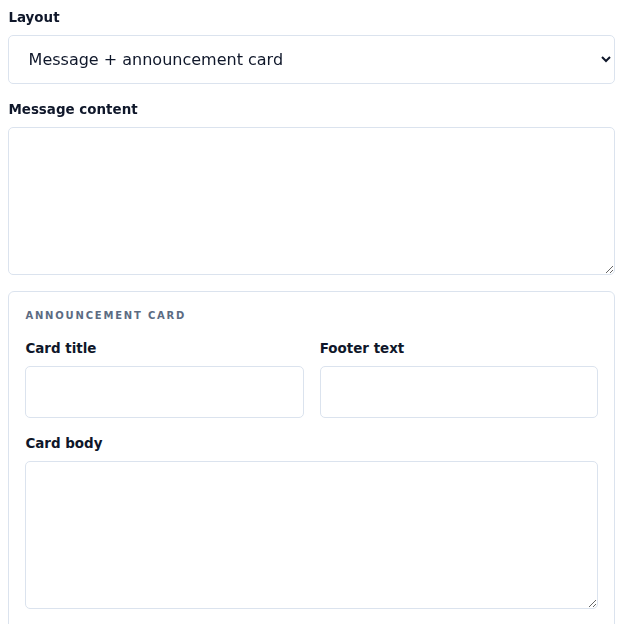
Layout offers Message only, Message + announcement card, or Announcement card only. The selected layout determines which fields are visible.
| Field or control | What to enter |
|---|---|
| Message content | Text outside the card, for layouts that include a message. |
| Card title / Card body / Footer text | The card's heading, content and short footer. |
| Accent color | Card highlight color using the color control. |
| Thumbnail URL / Choose thumbnail | Small square image near the title. Use an accessible image URL or the upload control. |
| Thumbnail fit | Cover crop fills the square; Contain with padding preserves the full image. |
| Focus point | Auto focus, Best detail, Center, Top, Bottom, Left or Right. Check the crop in the preview. |
| Image or GIF URL / Upload image or GIF | Larger media below the card body. This can be used with or without a thumbnail. |
| State | Enabled makes the template available for its intended sending flow; Disabled keeps it stored without normal active use. |
Use the Live preview to inspect wording, links, images and any mentions. A preview is not a delivery confirmation.
Save and test
Select Save template. Confirm the correct route and channel in Connection before using a test/send action: it creates a real Discord message. Check Delivery log and the destination channel afterward.
For repeated messages, create a campaign. Disabling a template does not remove messages previously delivered to Discord.