Use the creator portal
Open the specific event's Creator login page. Enter Avatar name or email and Password, then select Enter creator portal. These are your credentials for that event, separate from the owner's central CaveTech account.
A completed application can show its decision/status before the designer has full participation access. Approval is required for the normal round-submission workflow. Imported designers must complete first access.
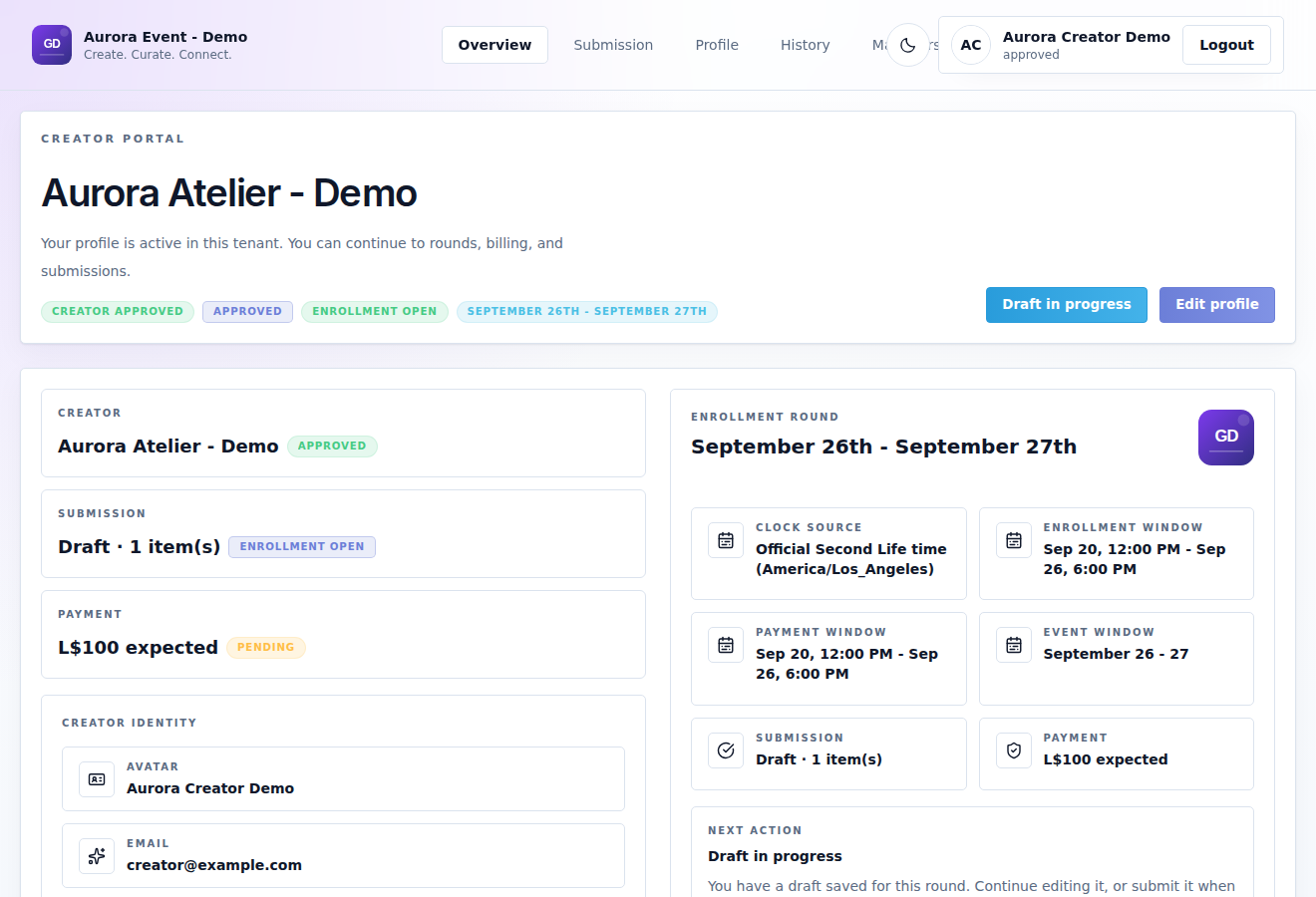
Overview
The overview identifies your store and avatar, application status, current round, enrollment state, payment expectation and next action. Read that action before starting again: you may need to start a submission, finish an existing one, pay, or wait for a decision.
| Area | What you can do |
|---|---|
| Overview | Check this event's current state and your next step. |
| Submission | Prepare and send content for the selected/current round. |
| Profile | Edit your display/brand names and change your password. |
| History | Review recorded activity and past round outcomes. |
| Managers | Invite and manage assistants, when the event permits onboarding and your role allows it. |
Profile fields
Display name changes how your name is shown. Brand name changes your public store label. Select Save profile and wait for confirmation.
Avatar name and Avatar key are reference fields with copy controls. They are not an avatar-transfer form. If the identity is wrong, contact the event before paying or submitting.
To change your password, enter Current password, New password, and Confirm new password, then Update password. Follow the visible requirements. If you do not know the current password, use password recovery.
History and access problems
History is for reviewing previous records; it is not a way to reopen a closed round or edit an old payment. Check the round name and dates when comparing participation.
If you cannot proceed, check application status, creator-login availability, round dates, edit-lock policy, role permissions and payment state. A manager may have fewer actions than the primary creator.
If login opens Use your tenant portal link, you reached the generic creator address. Return to the complete event-specific link supplied by the event owner. See the link workaround.