Show the public team
Open Site Homepage → Team. This page controls the managers displayed to visitors. Adding someone here does not give them dashboard access. Use Workspace Team for internal staff, and Creator Managers for a designer's assistants.
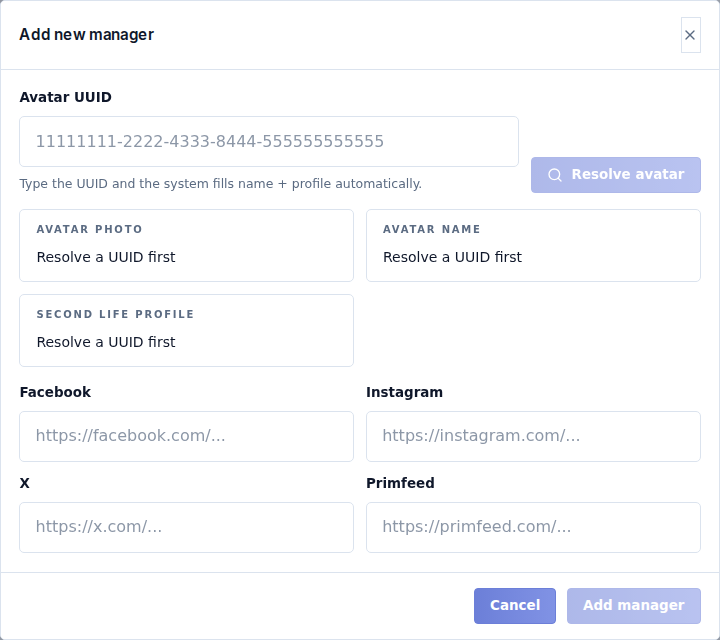
Add a public manager
- Select Add manager.
- Enter the person's Second Life Avatar UUID and select Resolve avatar.
- Check the resolved avatar name, profile and picture. Do not continue if you resolved the wrong person.
- Add the public social links you want to show.
- Select Add manager in the dialog and check the public roster.
| Field | What to enter |
|---|---|
| Avatar UUID | The avatar's full UUID, not their display name or an object UUID. |
| Optional public Facebook profile/page URL. | |
| Optional public Instagram URL. | |
| X | Optional public X profile URL. |
| Primfeed | Optional public Primfeed profile URL. |
Leave unused links empty rather than using a home-page URL unrelated to the manager.
Maintain the roster
Reorder entries to choose who appears first. Use the edit action to update links, and remove people who no longer represent the event. Verify the published Team page after changes.
Sync presence refreshes in-world presence information through the event's Server. It needs a connected verification object. A stale or unavailable presence result is not proof that the avatar is offline; check the last synchronization and connection status.
Public roster changes and the homepage layout are separate controls. The layout's Show Team/navigation label determines how visitors reach this page; it does not assign staff roles.