Vendors and Vendor Groups
Open Vendor → Vendors to manage the physical display objects registered to your store. A Product describes what is sold; a Vendor is a particular object selling it.
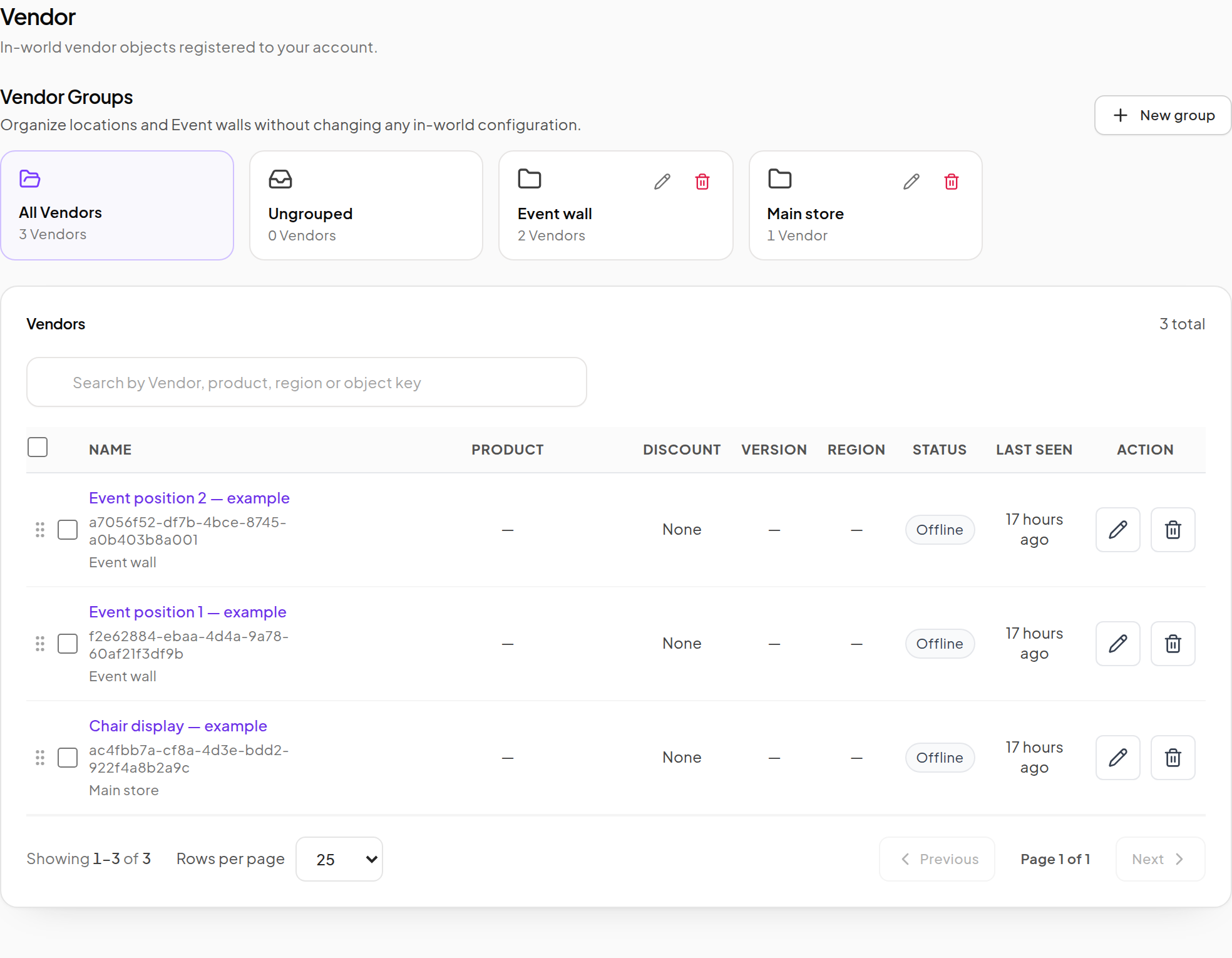
Find an object
- Choose the relevant Vendor Group or the all-Vendors view.
- Search for the display by its recognizable object name.
- Review its assigned Product and availability.
- Open its edit action for the full configuration.
Use clear names for your displays before registering many copies. The Vendor's UUID identifies the actual object; renaming it does not make a different object the same Vendor.
Organize Vendor Groups
- Click New group, enter its Group name, and click Create group.
- Select the intended Vendor rows using their checkboxes.
- Click Move to group, choose the destination, and confirm with Move Vendors.
- Open the destination group and check its contents.
To rename a group, use its pencil action and Save name. Check the selection count and target before any bulk move.
A dashboard Vendor Group is for organization, selection and financial filtering. It does not grant Second Life group membership, create a membership discount, or change the concrete Vendor positions already saved in an Event.
Edit the Product and object name
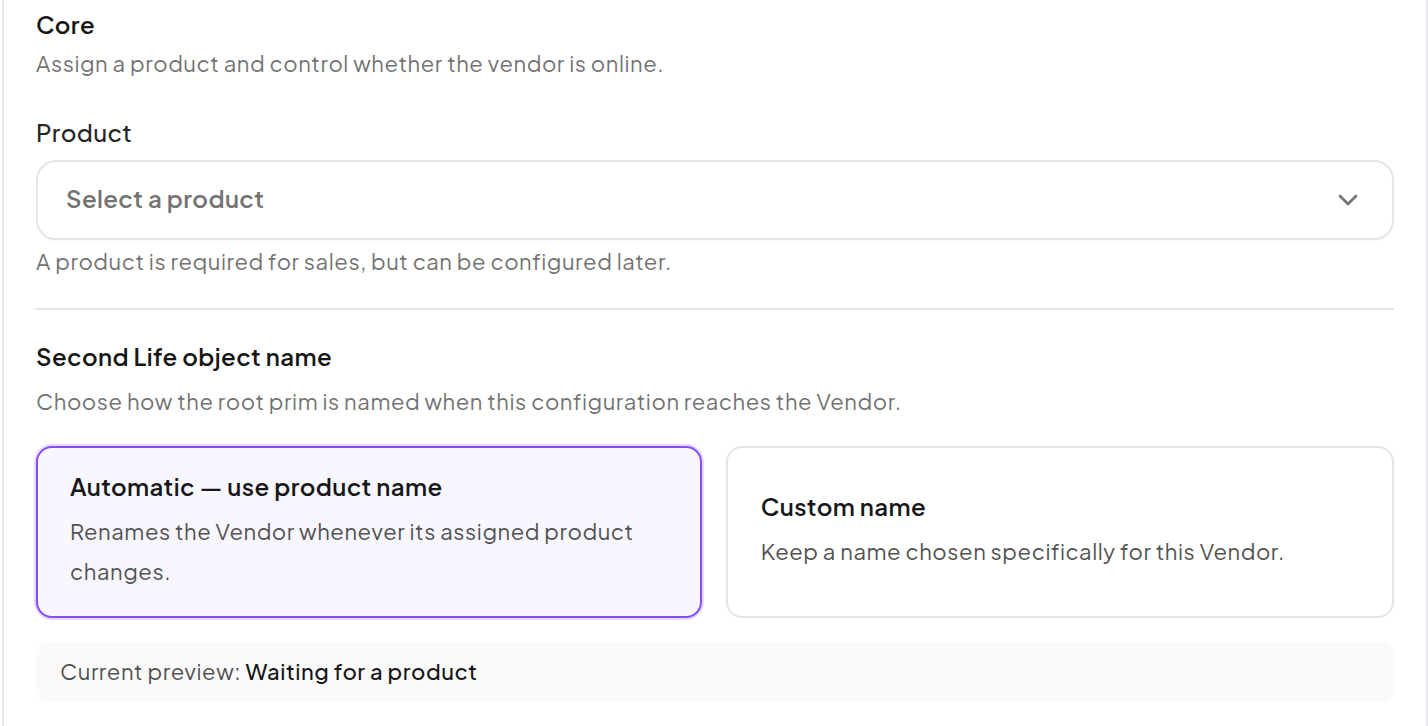
- Select the Product that this Vendor should sell.
- Choose automatic Product-based naming or a custom Second Life object name, as offered by the editor.
- Review any price override and display placement override.
- Save changes and allow the object to refresh.
If an Event currently controls the display, its active placement can govern Product, price and artwork. Review the Event before expecting an ordinary Product assignment to override an active round.
Per-Vendor options
| Option | What it changes |
|---|---|
| Price override | Sets this display's regular price, subject to Product price protection. |
| Discount selection | Uses no discount, a saved profile or a custom discount. |
| Disable touch dialog (pay directly) | Suppresses the customer's touch menu while retaining direct Pay. |
| Don't allow purchases with store credit | Removes and disallows Store Credit use on this Vendor. |
| Restrict this vendor to group members only | Requires the correct active in-world group for acquisition. |
| Disable gifting | Stops Gift use on this Vendor. |
| Hover text | Shows or hides the configured status text above the object. |
| Send info notecard on touch | Sends a selected information notecard on an eligible touch. |
| Partner profit share | Provides the fallback merchant share list when the Product has no enabled list. |
| Offline | Stops purchase actions until the Vendor is brought back online. |
Read Discounts before combining protected Products, overrides and group prices. Read Understand earnings before configuring fallback partner shares.
Bulk changes
Select the intended Vendor rows and use the available group or discount action. Review the target scope before applying it. Setting a discount profile as the default for new Vendors is not the same as changing all currently registered Vendors.
Temporarily close a display
Use the Vendor's offline option and save. Offline behavior takes priority over price, stock and Product artwork; the configured offline texture is used when present.
Bringing it back online recalculates the current Product state. Check current stock, dates and Event assignment rather than assuming it returns to an old screenshot's price.