Coupon codes
Coupons let a customer request a private price quote by entering a code in a Vendor's touch menu. A coupon must be enabled, within its dates and limits, and valid for the selected Product.
Create the offer
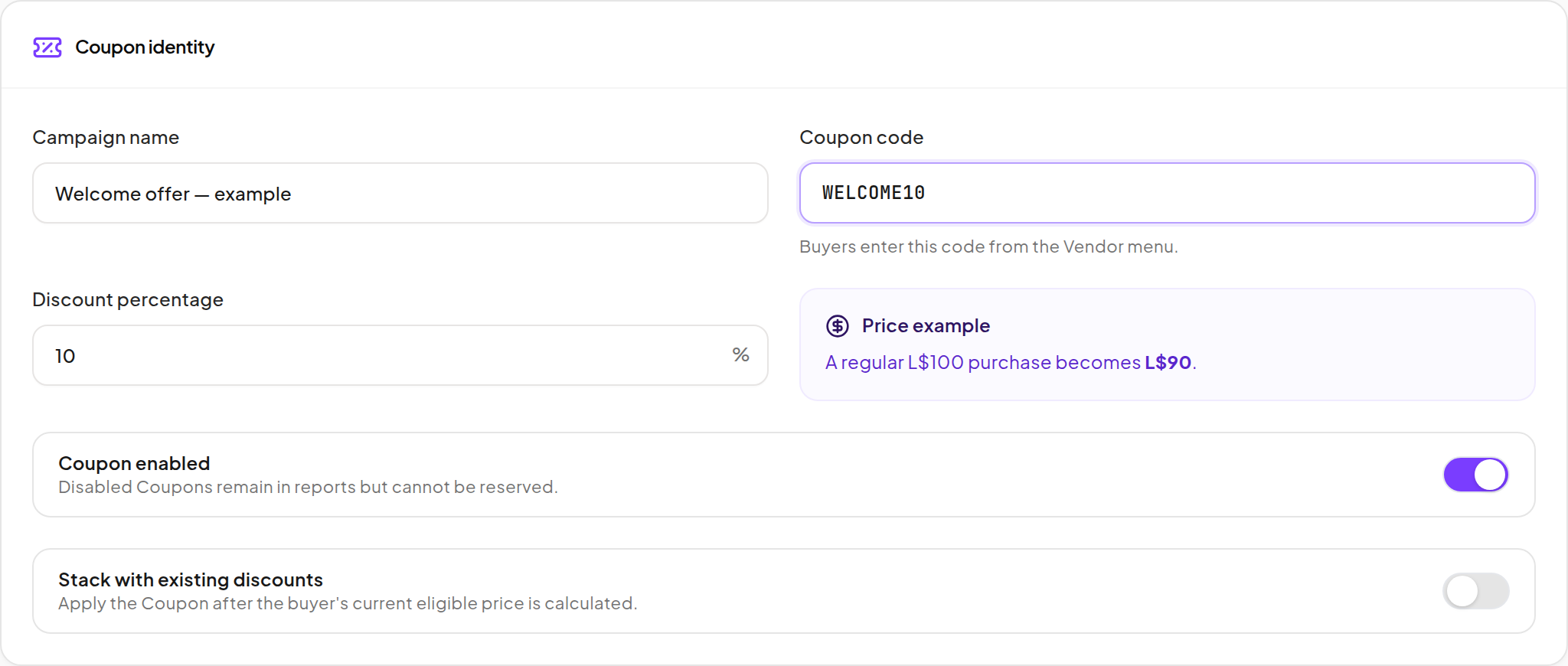
- Open Coupons and start a new coupon.
- Enter its internal name and customer-facing code. Codes are normalized to uppercase.
- Enter a whole-number Discount percentage from 1 to 99.
- Choose whether the coupon is enabled.
- Decide whether Stack with existing discounts is appropriate.
Choose scope and limits
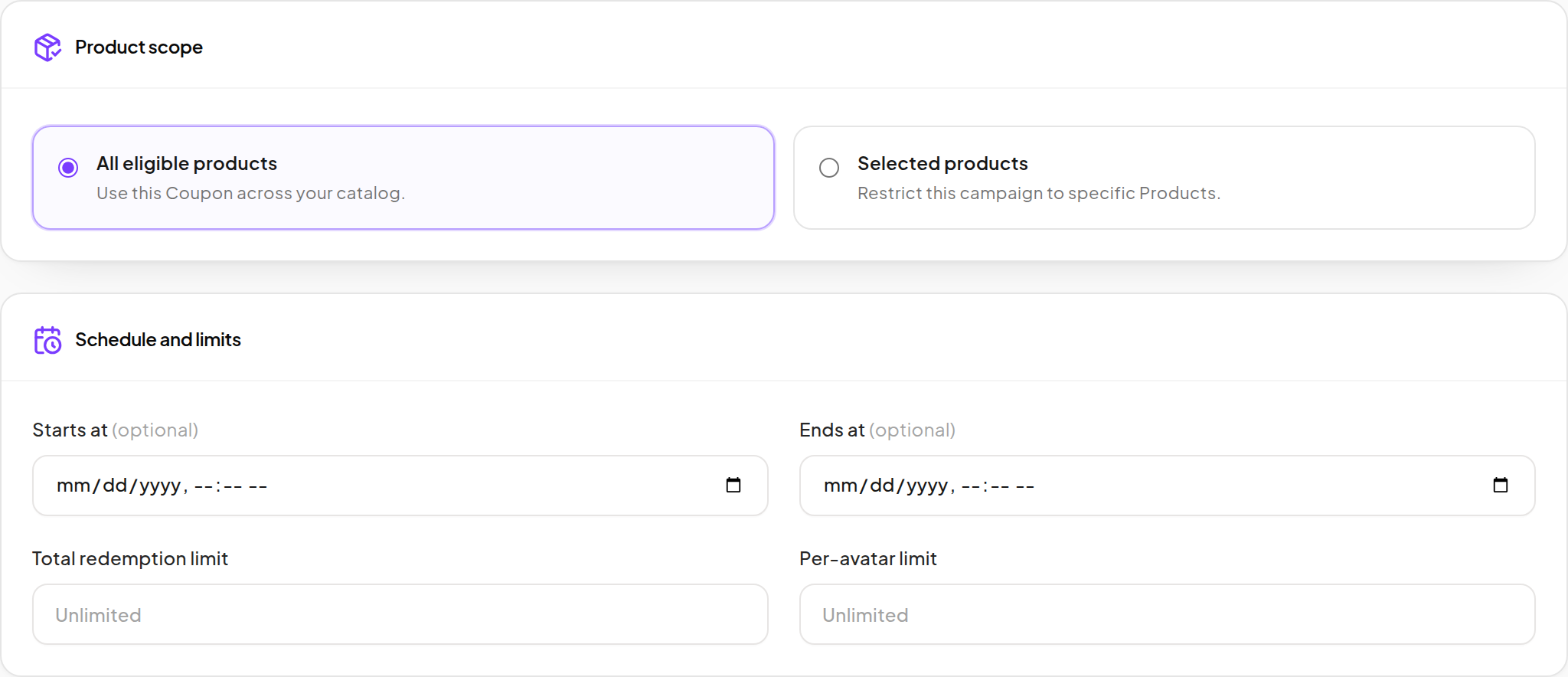
- Use All eligible products for a continuing catalog-wide offer, or Selected products for a fixed selection.
- For selected scope, search and select the intended Products.
- Set optional start and end dates.
- Set a total redemption limit and/or a per-avatar limit if required.
- Review optional campaign partners and save the coupon.
Never discount Products and Store Credit Products are not eligible. A free Product does not need a paid coupon reservation. Event discount policy can also restrict whether coupons apply.
Understand stacking
For a Product regularly priced at L$100, with an existing eligible price of L$80:
| Coupon | Result |
|---|---|
| 10%, stacking off | The better eligible price wins: L$80. |
| 10%, stacking on | 10% is taken off L$80: L$72. |
Percentages are applied in sequence; they are not added together. Always check the final quote, especially when whole-Linden rounding applies.
Optional coupon partners receive additional allocations alongside the applicable Product or Vendor partner list and any platform commission. Up to three coupon campaign partners can be configured. Confirm that the combined allocation fits the allowed percentage; a coupon partner is not automatically included in every sale.
What the customer does
- Touches the Vendor and chooses Coupon.
- Enters the code and reads the quoted amount.
- Pays the exact quoted amount within the three-minute reservation.
- Waits for delivery.
The reservation belongs to that buyer, Vendor and Product. Another avatar does not gain eligibility because a Pay button temporarily displays the same amount. If the quote expires, request a fresh one before paying.
For gifts, coupon use is attributed to the buyer; the actual recipient receives the eligible purchase. Review coupon usage in Coupons and sale amounts in Finance. Disable a code when you want to stop accepting it while retaining its history.