Redelivery and store branding
Redelivery lets a customer recover an eligible purchased Product. It uses the purchase recipient's identity and the Product's recovery rules; it is not an unrestricted public download page.
Prepare recovery
- Keep the current delivery item available in its Dropbox.
- Enable Enable redelivery on the Standard Product when recovery should be allowed.
- Review any per-avatar recovery restriction on that Product.
- Rez the supplied Redelivery terminal using the store owner. Its current package uses CT_Redelivery.lsl.
- Let the terminal register and remain available.
What the customer does
- Touches the Redelivery terminal with the avatar that owns the purchase entitlement.
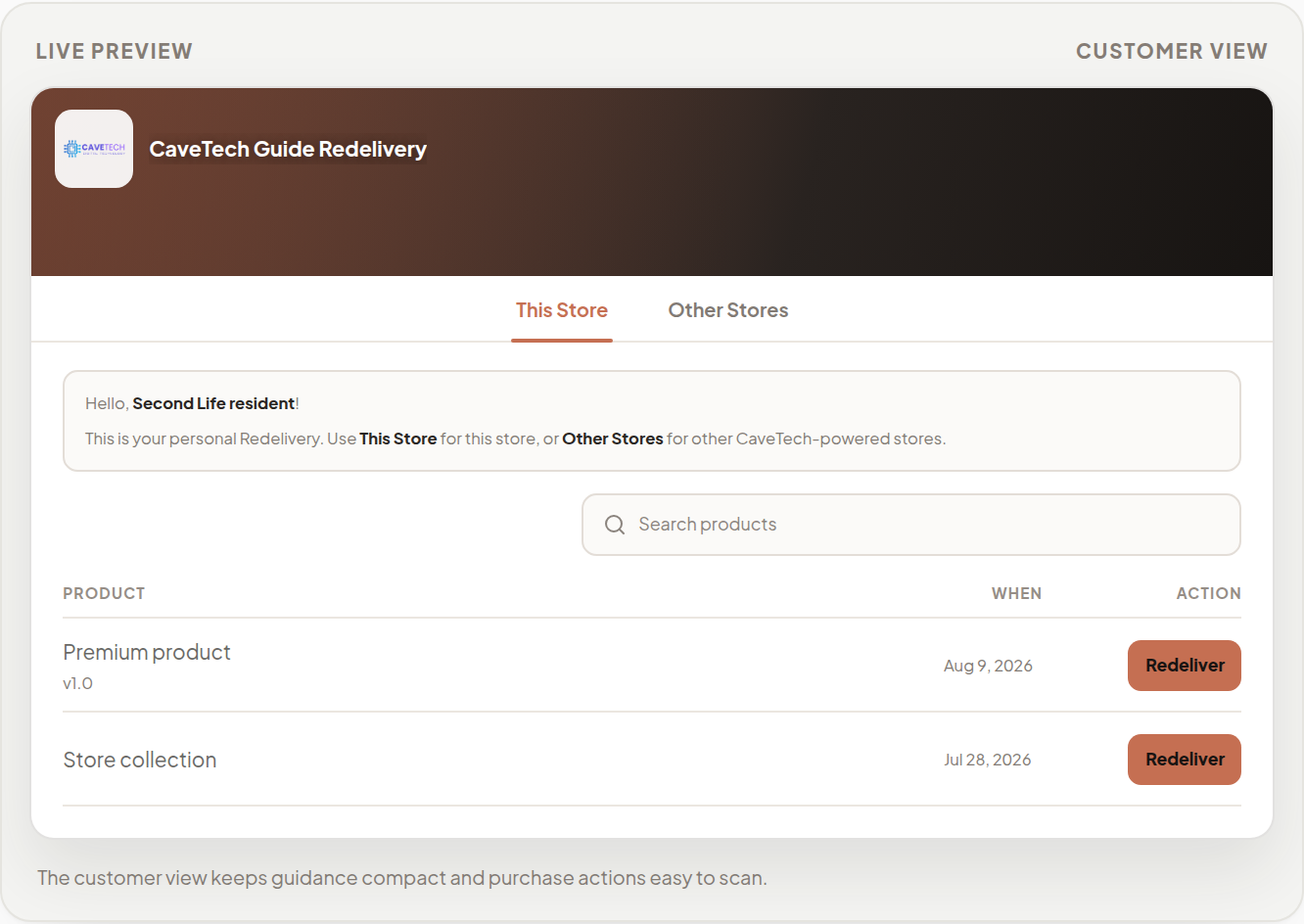
- Opens the personal link supplied by the terminal.
- Uses This Store or the available Other Stores view.
- Searches for the eligible Product.
- Clicks Redeliver and waits for the resulting inventory offer.
The terminal provides a temporary personal session. If it expires, touch the terminal again for a fresh link. Customers should not share their authenticated Redelivery link.
Gift recipients recover their own eligible gifts. A Demo, manual send or an unmatched/unproven Marketplace notification does not by itself prove a recoverable purchase. Store Credit Products cannot be redelivered to issue more credit.
Set your store identity
Open Redelivery in the dashboard.
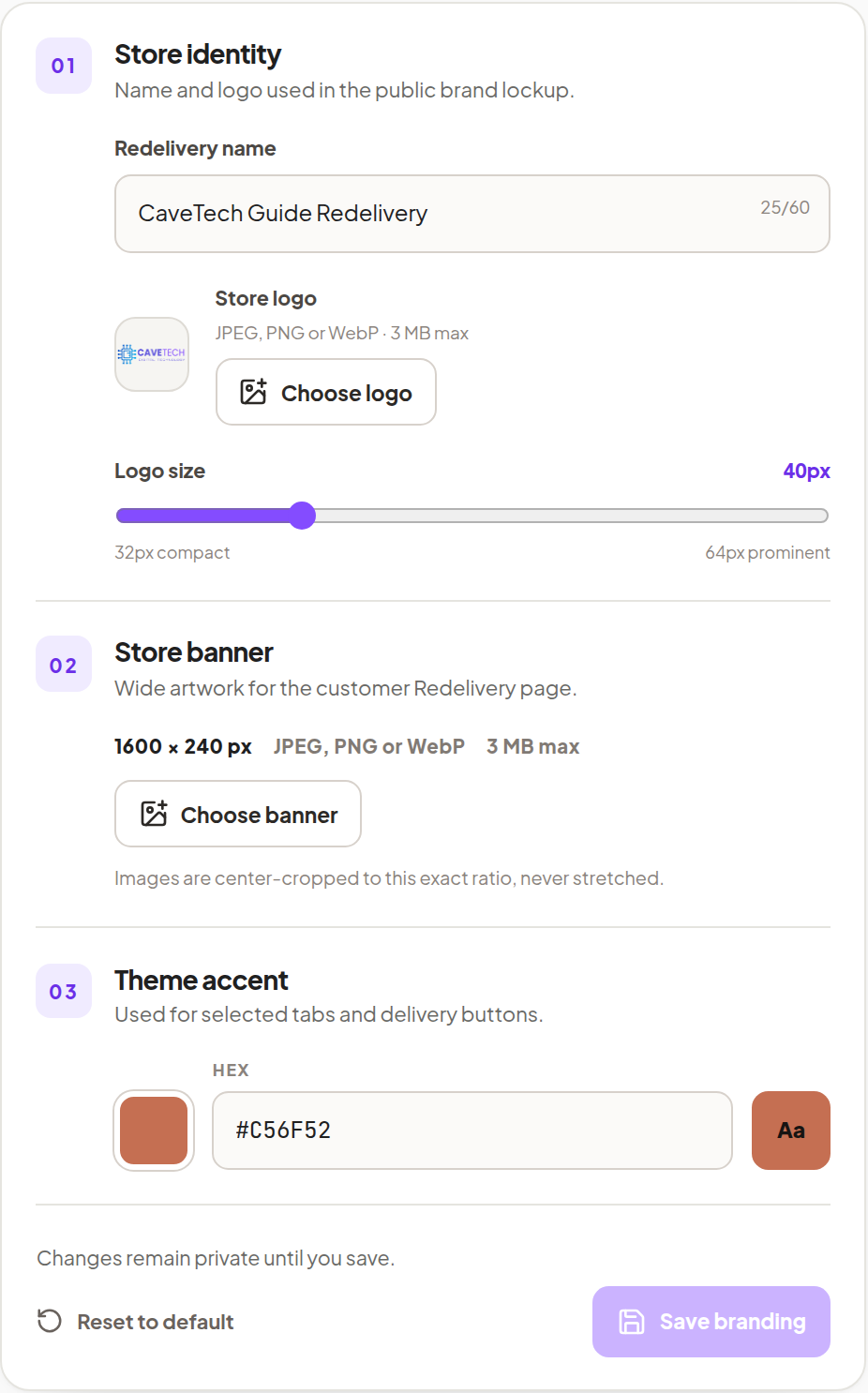
- Enter a Redelivery name.
- Use Choose logo to upload a JPEG, PNG or WebP file, up to 3 MB.
- Adjust Logo size within the offered 32–64 px range.
- Use Choose banner to upload the store banner, also up to 3 MB.
- Choose the theme accent or enter its HEX color.
- Inspect the preview and click Save branding.
The banner is displayed at a 1600 × 240 ratio. Images are center-cropped to that ratio, so keep important content away from the edges. The preview does not publish changes until you save.
Reset to default returns the controls to the default identity; review the result before saving.
If a purchase is missing
- Confirm the customer's actual recipient avatar, especially for gifts.
- Confirm that Product redelivery is enabled and no applicable limit blocks it.
- Check that the original purchase completed normally.
- For older purchases, review the historical import, its Product mapping and recipient evidence.
- For a delivery attempt that was accepted but did not complete, open Delivery issues.