Set up a Dropbox
The Dropbox holds the actual inventory delivered to customers. The Vendor display and the Dropbox can be separate objects: the display takes the purchase, and the Dropbox sends the item.
Step 1: Rez the supplied Dropbox
- Find the Dropbox object supplied with your current CaveTech Vendor package.
- Rez it on land where the store owner can run scripts.
- Give it a recognizable object name, such as the name of your collection.
- Keep the supplied scripts together in the Dropbox object.
If you are installing an authorized script package into an existing object, the current Dropbox uses CT_Dropbox_Core.lsl, CT_Dropbox_Events.lsl and CT_Dropbox_Inventory.lsl together. Use the package supplied for your live store; do not mix scripts from different packages.
Step 2: Add your deliverable items
- Edit the Dropbox in Second Life and open its Contents.
- Add the Product item or package that customers should receive.
- Add any separate Demo, information notecard or license notecard you intend to offer.
- Use distinct, recognizable inventory names.
- Leave the Dropbox rezzed and running while the inventory synchronizes.
The current owner must be able to transfer the item. The permissions that the next owner receives are a separate choice. An item can be Copy/Modify/No Transfer for the customer while still being transferable by the Dropbox owner.
Step 3: Check the dashboard
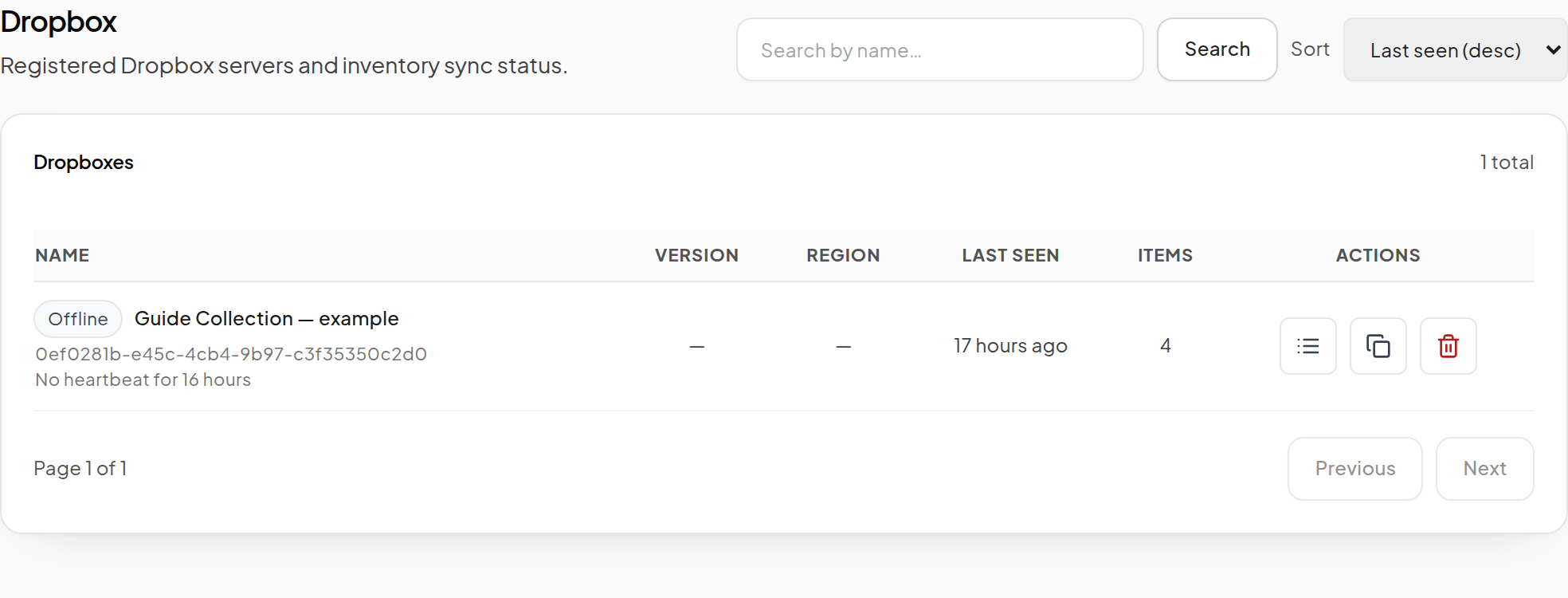
- Open Dropbox in the Vendor sidebar.
- Find the object by name.
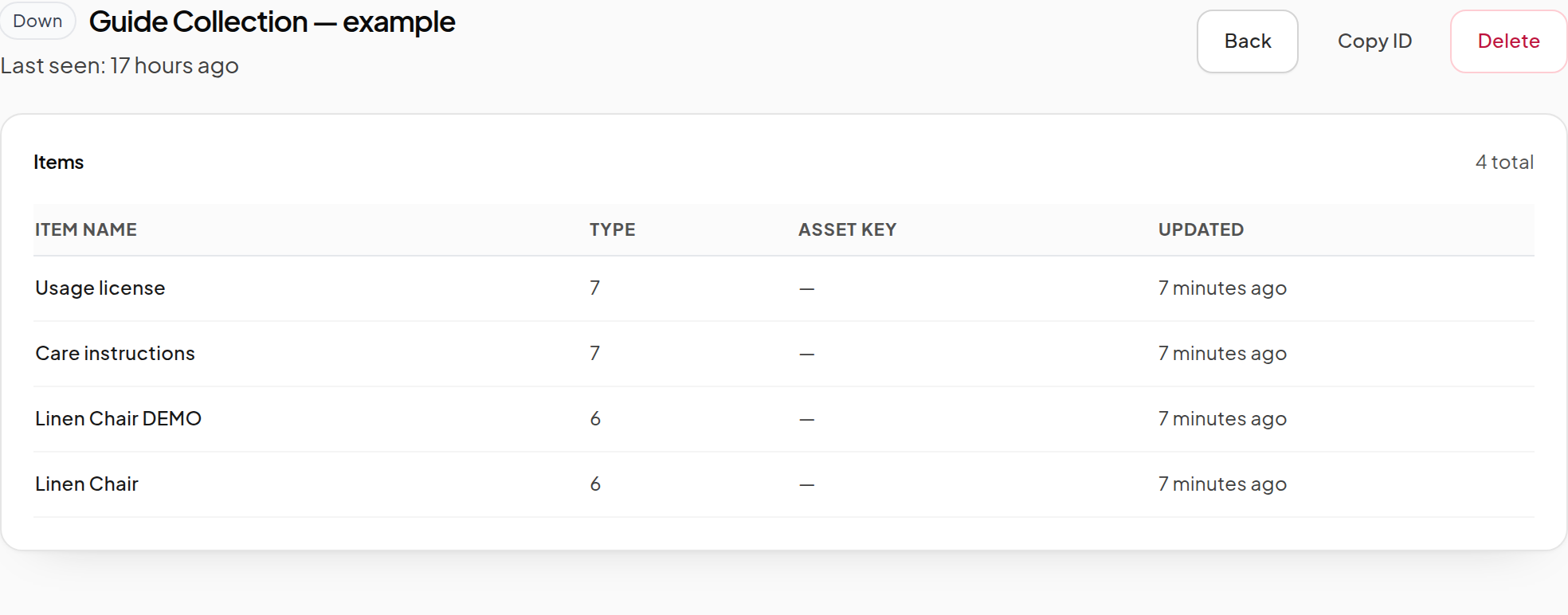
- Open it to inspect its inventory.
- Confirm that the item name and permissions have synchronized.
Step 4: Refresh after changes
Inventory changes trigger synchronization. If the dashboard has not caught up, touch the Dropbox as its owner to request a refresh, then wait for the scan to complete and reload the inventory view.
Keep the object available while it scans. A temporarily partial or offline inventory should not be treated as proof that all missing rows were deleted.
Before creating a Product
Check that the Dropbox is online, the selected item exists and owner Transfer permission is confirmed. If the Product editor says to wait for permissions to synchronize, resolve that condition before saving an item-delivery Product.
For later inventory maintenance and deletion rules, see Dropbox inventory.
Next: Create a Product.