Store Credit
Store Credit is a customer's balance for your store. It does not expire and cannot be cashed out, transferred between avatars or spent in another store. A customer must cover the full eligible purchase with credit; mixed credit and L$ payment is not supported.
Read the account views
Open Store Credit.
| Tab | Use it to |
|---|---|
| Customers | Find a customer's balance and lifetime issued credit. |
| Credit products | Manage the Products customers buy to receive credit. |
| Transactions | Inspect grants, deductions, purchases and reversals. |
| Settings | Set the store display name used in private credit receipts. |
Outstanding credit is a future store obligation. Credit issued and credit redeemed are different from cash collected.
Sell a credit Product
- Open Products → New product.
- Choose the Store Credit Product type.
- Enter a positive L$ sale price and a positive credit value.
- Complete its name, listing and advertising artwork, then create it.
- Assign it to a Vendor and check its displayed offer.
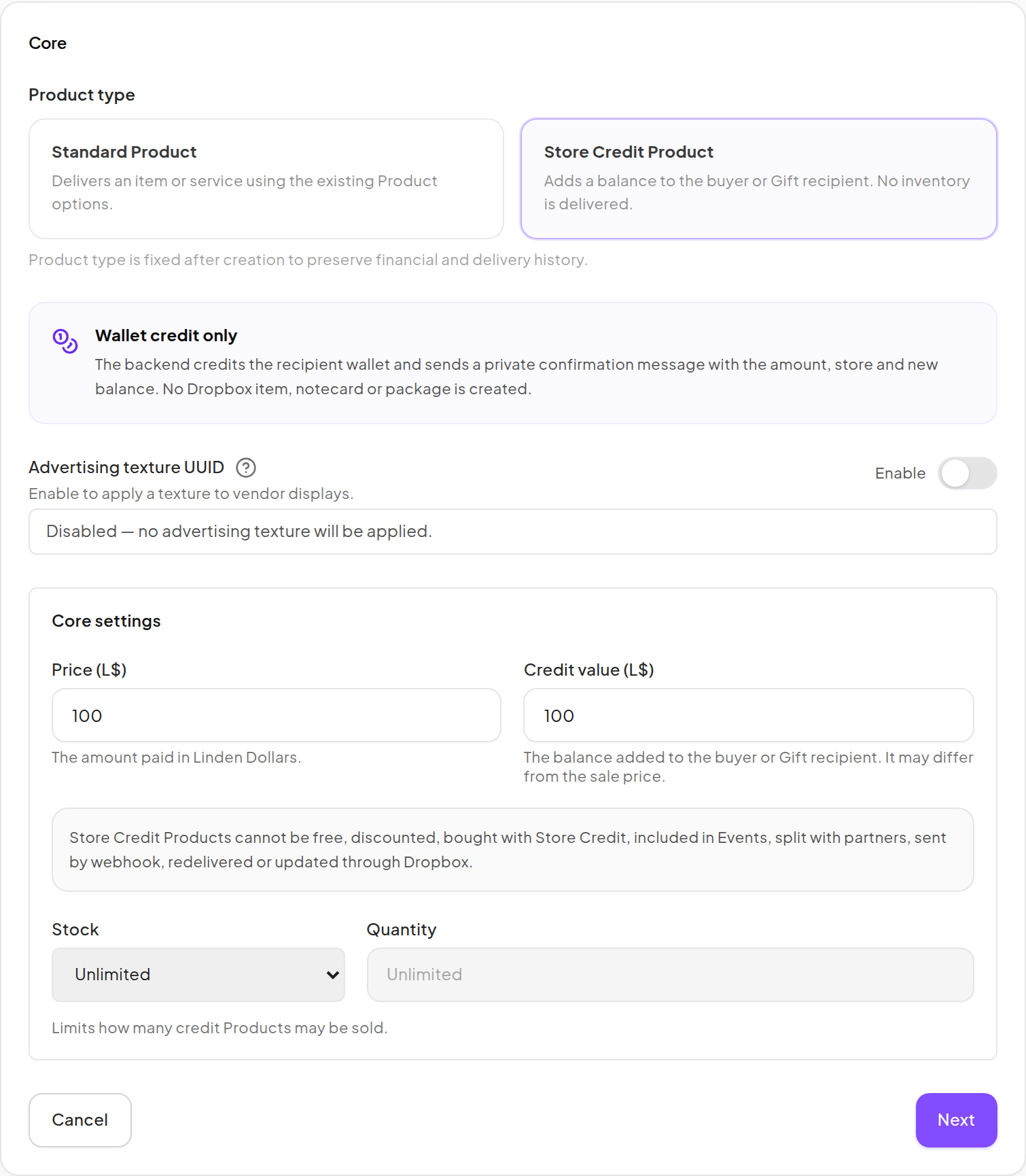
Credit Products deliver balance rather than Dropbox inventory. They do not use Demo, item redelivery, update batches, coupons, Event discounts, Product/Vendor/coupon profit shares or delivery webhooks. A qualifying L$ credit purchase can still incur the platform commission shown by your Billing plan.
A customer can buy credit for themselves or as a Gift. Once issued, that recipient's balance cannot be transferred to another avatar.
Add or deduct credit manually
- Click Adjust credit.
- Choose Add credit or Deduct credit.
- Enter the customer's Second Life username, a positive whole amount and a clear reason.
- Check all fields before pressing the final Add credit or Deduct credit button: it applies the adjustment.
- Confirm the new balance and transaction entry.
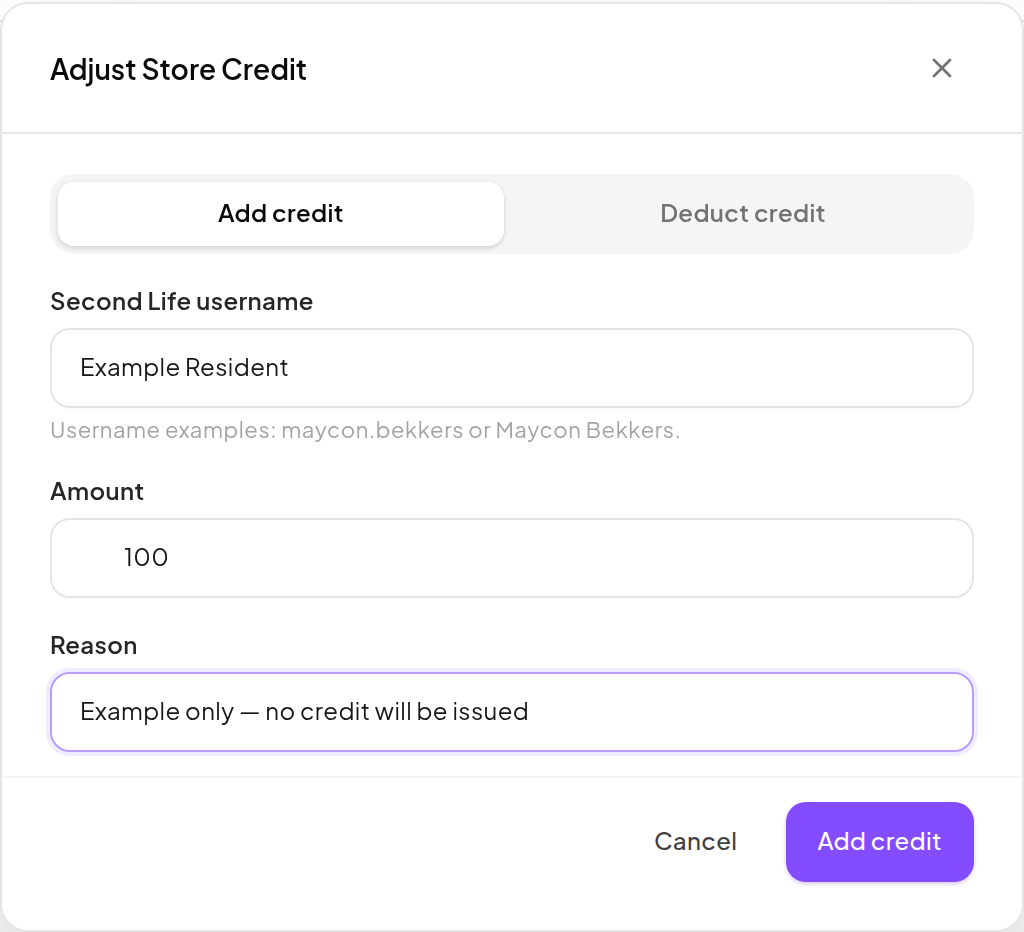
A manual grant is not a new Linden Dollar payment. Do not use it to make cash reports appear balanced.
How customers spend credit
- Touch the eligible Standard Product Vendor.
- Choose Use credit and read the quote.
- Choose Confirm within the three-minute quote, or Cancel.
- Wait for the item and the balance receipt.
The system rechecks the balance and Product restrictions when confirming. For a Gift, the buyer's credit pays and the chosen recipient receives the item. A Vendor can block this method with Don't allow purchases with store credit.
Spending credit does not collect fresh L$ or charge another CaveTech platform commission. Applicable Standard Product partner allocations may still exist; inspect them separately in Finance.
Review a failed credit purchase
Check Delivery issues and the credit transaction before making an adjustment. For an eligible terminal failed or canceled delivery, Transactions offers Reverse failed purchase. Read its confirmation: the credit is restored and the delivery remains canceled. A pending delivery is not grounds to issue duplicate credit while it may still complete.