Understand your earnings
Open Finance → Overview and choose the period you want to inspect. The earnings breakdown separates what was sold, what was deducted and how much of the outgoing payment has been confirmed.
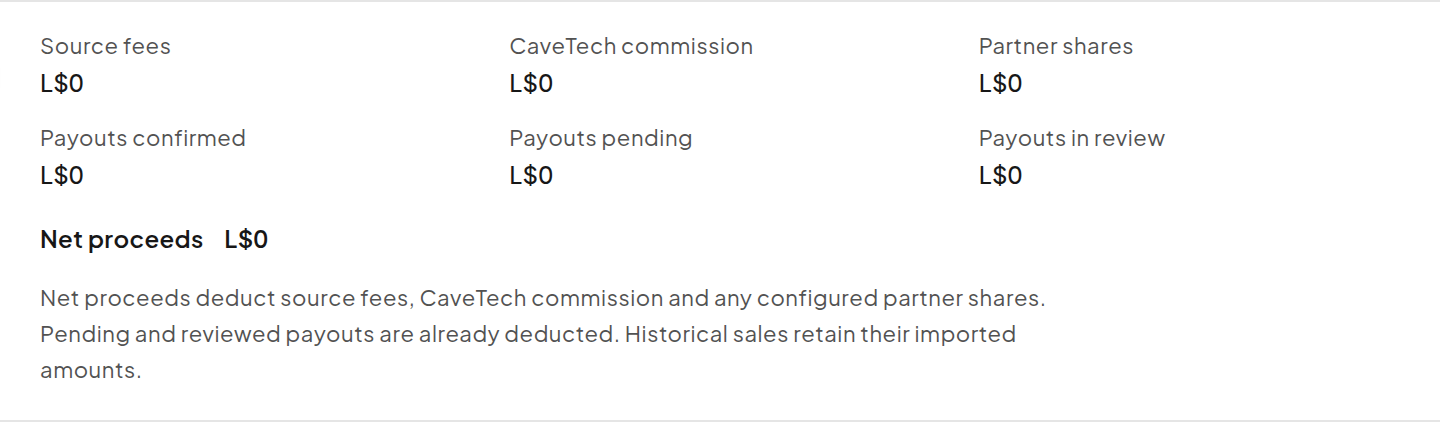
What each figure means
| Figure | Meaning |
|---|---|
| Gross | The recorded value of the matching sales before their deductions. |
| Source fees | Fees recorded by the sale source, such as the Marketplace fee. |
| CaveTech commission | The platform commission recorded for eligible sales in commission mode. |
| Partner shares | Optional merchant-configured Product/Vendor shares and applicable coupon partner shares. |
| Net proceeds | Gross less source fees, CaveTech commission and partner shares. |
| Payouts confirmed | Deducted payout amounts whose transfer is recorded as paid. |
| Payouts pending | Deducted payout amounts still awaiting completion or confirmation. |
| Payouts in review | Deducted payout amounts that require reconciliation. |
Do not subtract the payout-status figures a second time. They show the state of the already deducted commission and shares.
A sale with only 5% commission
This is an illustrative calculation, not a transaction from the screenshots:
| Calculation | Amount |
|---|---|
| Customer pays | L$100 |
| Source fees | L$0 |
| CaveTech commission: 5% of L$100 | L$5 |
| Optional partner shares | L$0 |
| Net proceeds | L$95 |
There is no automatic extra 10% deduction. A partner share exists only when applicable merchant configuration adds it.
With an additional configured 10% partner share, this same L$100 example would deduct L$5 + L$10 and leave L$85. That is a different configuration, not the result of a 5% commission alone.
Percentages are calculated from the accepted payment using whole-Linden amounts. At 5%, an eligible L$20 sale produces L$1 commission; an eligible L$5 sale produces L$0 after rounding down. Check the actual sale record and current Billing policy for your store.
How partner shares are chosen
A Product's enabled share configuration takes precedence over the Vendor's fallback share configuration. These two lists are not automatically added together. An applicable coupon partner list can add its own shares, and CaveTech commission is accounted for separately.
The configuration must fit within the amount available for the sale, including the platform commission capacity. See Product options and Coupons.
Paid mode and old sales
An active weekly paid period suppresses the CaveTech platform commission on eligible new sales. It does not remove optional partner shares.
Reports use the amounts recorded for each sale. Changing a price, share percentage or commercial mode today does not apply today's policy retroactively to older purchases. Historical imports retain their imported amounts and fees.
Store Credit is not fresh Linden Dollar cash
A Standard Product paid with Store Credit consumes the customer's existing balance. It should not be read as new Linden Dollars received at that moment. A credit Product bought with Linden Dollars records the cash purchase and the credit issued as different quantities.
Consult the payment method and credit figures when reconciling these transactions. Store Credit explains the wallet rules.
Check a refund
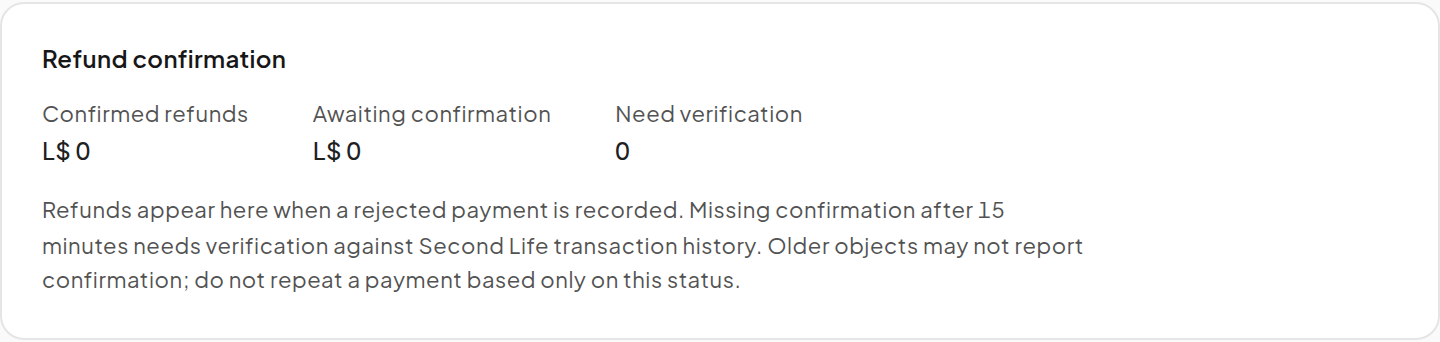
The Refund confirmation section records refunds associated with rejected payments. A rejected payment is not a successful Product sale.
- Locate the rejected payment and its time and amount.
- Check whether the refund is Confirmed, Awaiting confirmation or needs verification.
- If confirmation is still missing after 15 minutes, compare with Second Life transaction history.
- Contact CaveTech if the evidence conflicts or an outgoing transfer remains in review.
Older installed objects may not report refund confirmation. Do not repeat the refund or erase an object's persistent data based only on a pending dashboard state.
Reconcile a specific sale
Open Finance → Sales, narrow the period, find the transaction and compare the Product, buyer, payment method, gross amount and deductions. Use the same filters for your CSV export.