Account and Vendor activation
Use the CaveTech account belonging to the avatar that will own the store's Vendor and Dropbox objects. If you already use another CaveTech product, use that same account.
Sign in to an existing account
- Open CaveTech login.
- Enter your email or Second Life username in Avatar name or email.
- Click Continue.
- Enter your CaveTech password and click Login.
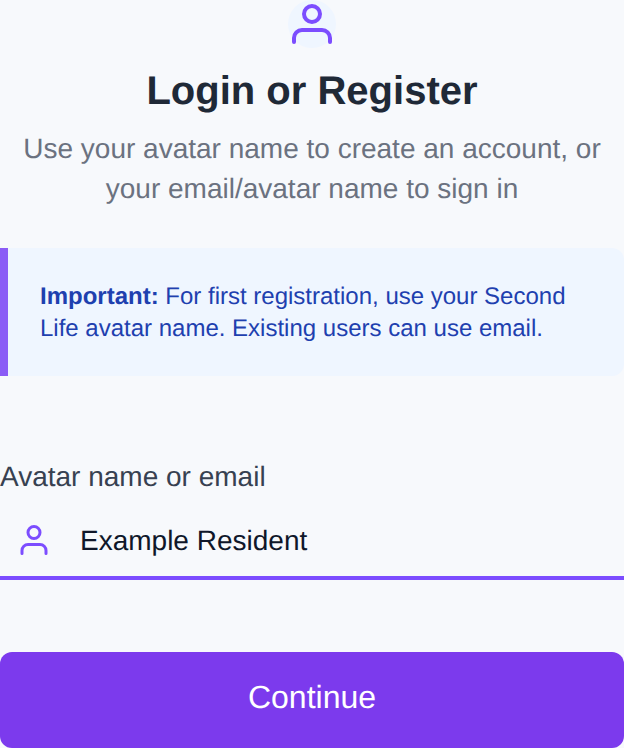
Use your Second Life username, rather than a decorative display name, when identifying an avatar. If you have a single-name account, the full name can include Resident.
Create a new account
- On the same login page, enter your Second Life username and click Continue.
- Complete the avatar verification shown by the registration flow. Be logged in to the correct avatar in Second Life and check the CaveTech message in chat or IM.
- Enter the verification code in the browser when requested.
- Provide your email address and create a CaveTech password that meets the displayed requirements.
- Complete registration and return to the dashboard.
The shared Rental account registration guide illustrates the central account flow. Its Rental activation step activates Rental; use the Vendor activator described below for this product.
If the account already exists, choose login or Forgot Password? instead of creating another identity. Never enter your Second Life password into CaveTech.
Activate Vendor
- In Second Life, locate the Vendor activator supplied with your CaveTech Vendor package.
- Rez or attach it using the avatar that owns your CaveTech account.
- Touch the activator as its owner. Its initial action is Activate.
- Wait for its result in chat. If it asks you to register first, finish account registration and return to the activator.
- Open the dashboard link provided by the activator, or open Vendor.
- Confirm that you can see Products, Dropbox and Vendor in the sidebar.
Activation grants Vendor access. It does not purchase a weekly paid period. The Billing page shows those two states separately.
If you cannot enter Vendor
| What you see | What to check |
|---|---|
| Login page again | Sign in to the correct CaveTech account and open Vendor again. |
| Vendor activation required | Touch the Vendor activator with the same avatar used for registration. |
| Register first | Complete the central CaveTech account before activating Vendor. |
| Request already running or please wait | Allow the current activation to finish before trying again. |
| Identity requires support review | Contact CaveTech with your username and the exact message; do not make duplicate accounts. |
Next: First store checklist.