Dashboard overview
The Dashboard is the starting point for routine store checks. It combines sales summaries with delivery health and shortcuts to the main tasks.
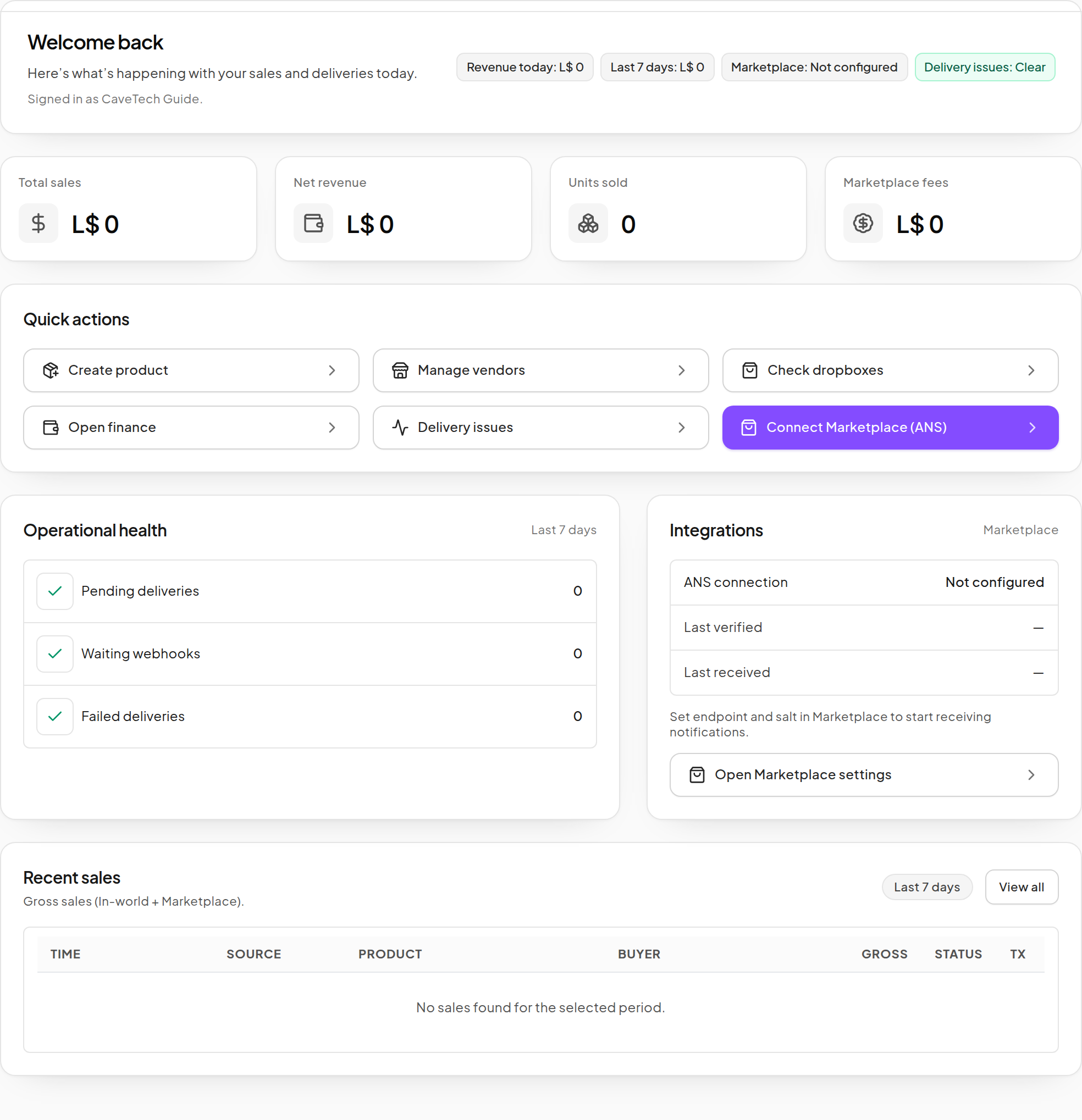
Start-of-day checks
- Read the revenue and unit summaries for the periods indicated on the page.
- Check Delivery issues and the Operational health counts.
- Review recent transactions for the expected Product and amount.
- Check the Marketplace connection if you use ANS.
- Open the detailed page for any item that needs attention.
The dashboard shows different time windows in different sections. Use a common period in Finance when comparing totals.
Quick actions
| Action | Use it to… |
|---|---|
| Create product | Start a new Product in the guided editor. |
| Manage vendors | Assign Products and organize in-world displays. |
| Check dropboxes | Inspect the inventory servers used for delivery. |
| Open finance | Investigate revenue, deductions and sales. |
| Delivery issues | Find work requiring attention. |
| Connect Marketplace (ANS) | Configure Marketplace sale notifications. |
Read operational health
- Pending deliveries: work waiting to progress.
- Waiting webhooks: deliveries waiting on an external approval step.
- Failed deliveries: attempts that need investigation.
A zero count in the example account means there is no such recorded work there. It does not prove an unconnected object is online. Check the specific Dropbox or Vendor when testing setup.
Continue to Delivery issues for troubleshooting or Financial reports for reconciliation.