Import historical sales
Use Sales history to bring proven older Marketplace or in-world purchases into Finance and Redelivery. Importing history does not deliver the inventory again or collect money again.
Step 1: Obtain the original export
Download an official Marketplace orders CSV or Second Life transaction history CSV from the merchant's account. Keep the original headers and columns so Vendor can identify the format and retain the transaction evidence.
Use Marketplace orders when you need its gift-recipient and delivery-state information. In-world transaction history also needs refund and recipient review where the export alone does not settle those questions.
This release recognizes the Portuguese-header formats: Marketplace columns include Data, Pedido #, Comprador and Destinatário; transaction columns include id, Tipo, Descrição, Crédito and Hora. An official export with different-language headers may be rejected as an unsupported format. Keep the original file and contact CaveTech rather than guessing renamed columns or date conversions.
Step 2: Upload a dry run
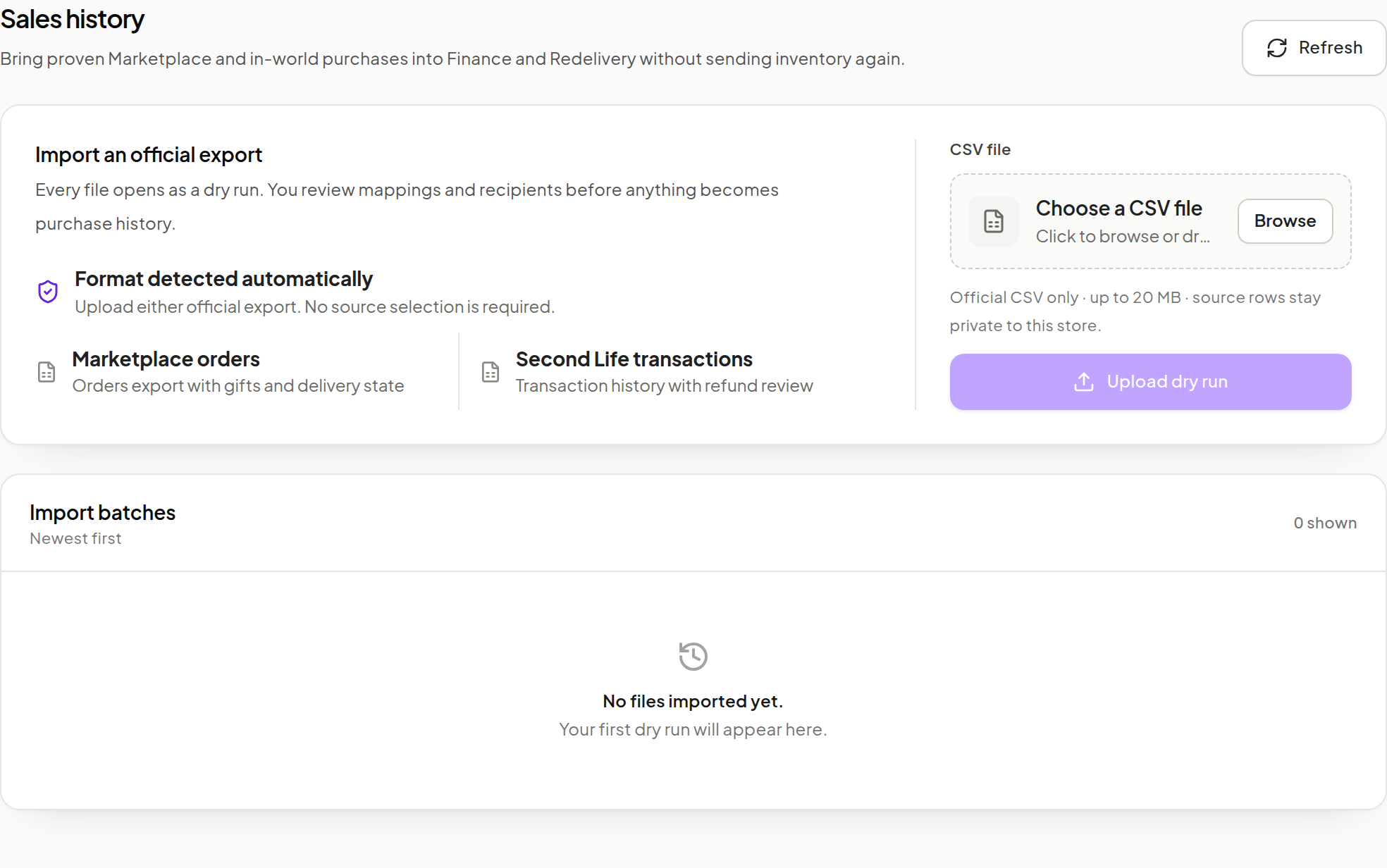
- Open Sales history.
- Choose the CSV file with Browse, or drop it into the upload area.
- Confirm that the file is an official CSV and within the displayed 20 MB limit.
- Click Upload dry run.
- Wait for the import batch to appear and open its review.
The format is detected automatically; you do not need to choose a source before upload.
Step 3: Review Products and recipients
For the batch, check the parsed source, totals and row outcomes before committing anything.
- Resolve unmatched source items to the correct current Vendor Product.
- Check ambiguous names and aliases; a similar Product name is not enough to prove a match.
- Review the buyer and actual delivery recipient, especially for gifts.
- Resolve avatars when the source requires it and the interface offers that action.
- Inspect failed, refunded, duplicate, conflicting or otherwise ineligible rows separately.
- Re-run matching or refresh the review after resolving the identified issues.

Step 4: Commit the reviewed batch
Use the batch's commit action only after confirming which records are eligible. Read the result: not every uploaded row necessarily becomes an active historical sale.
Commit historical sales remains locked while rows still require review. Resolve or explicitly exclude those rows before committing; the application does not silently turn an unresolved partial batch into purchase history. Recheck matches and Retry avatar lookup are available when the corresponding evidence needs another check.
Expected result: eligible history is available to the relevant Finance and recovery views. The import does not queue another item delivery, create a current Linden Dollar payment or fabricate an unproven recipient.
Correct or reverse a batch
If the source or mapping was wrong, inspect the batch and its available correction or reversal action. Reversal concerns imported historical records; it is not an in-world Linden Dollar refund.
Do not edit an official file to make a refunded or failed order look delivered. Keep the source export and batch details so you can explain a correction later.
Check the results
- In Finance, choose a date range covering the original purchases.
- Confirm the retained source amounts and fees.
- For recovery, verify the Product mapping, eligible recipient and delivery state.
- Remember that product update batches have their own recipient eligibility; an import is not proof that every row is in an update batch.
If you cannot safely resolve a row, leave it for review and contact CaveTech with the batch reference.