Manual delivery and product updates
These actions are available from the Products list for Standard Products. They serve different purposes: manual delivery targets one person; a Product update targets eligible existing customers.
Deliver an item to one avatar
- Find the Standard Product in Products.
- Click its truck-shaped Deliver action.
- Check the Product name in Deliver product.
- Enter the recipient in Avatar username or UUID.
- Click Deliver once and wait for the result.
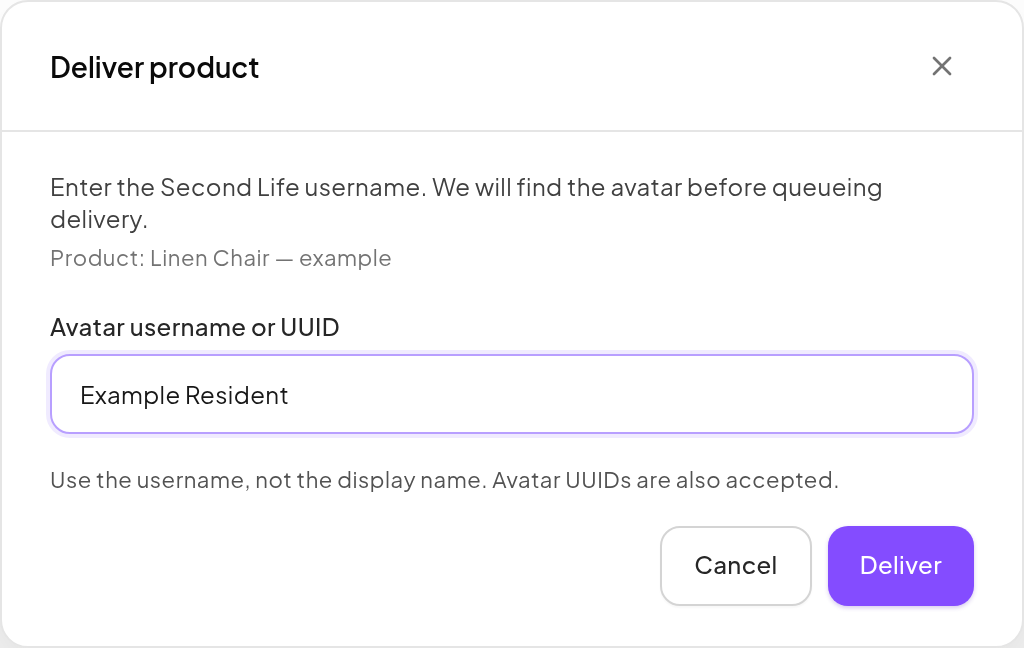
You can enter a username such as first.last or first Resident; you do not need to look up the UUID yourself first. Decorative display names may be ambiguous. A valid UUID is also accepted.
Expected result: a delivery-queued confirmation. Queueing means the work was accepted, not that the avatar has already accepted an inventory offer. Use Delivery issues to follow its progress.
If the avatar is not found, correct the username. If lookup is temporarily unavailable, no delivery is queued by that failed attempt; wait and try again. A manual item does not itself create a paid purchase entitlement or a new sale.
Send an update to existing customers
Prepare the current delivery item and save the Product version before launching an update.
- In Products, click Send product update for the Standard Product.
- Confirm the Product and Current item shown by the dialog.
- Review the unique customers count and any latest-batch progress.
- Click Queue update only if this is the update you intend to send.
- Follow the queued, processing, sent and failed counts as work continues in the background.
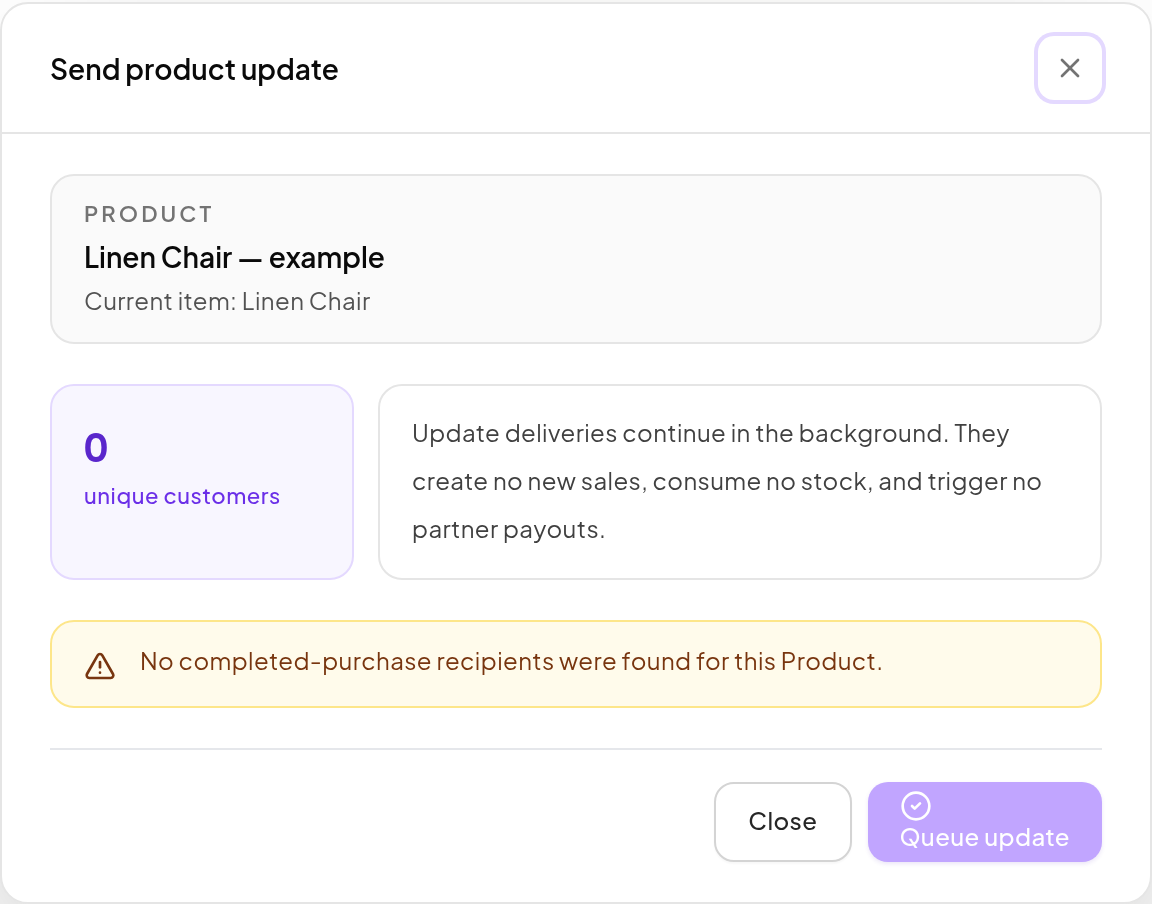
Eligibility is based on completed Vendor purchase deliveries, using the actual delivery recipient. Repeated qualifying purchases do not require sending multiple copies to the same recipient. A gift belongs to its recipient for this purpose.
Demos, manual sends, previous updates and incomplete or failed deliveries do not independently qualify someone. Historical imports and Marketplace recovery records have their own rules; use the preview's count rather than assuming every customer in every source is included.
An update creates no new sale, consumes no Product stock and triggers no new partner payout. Store Credit Products have no inventory to update and must not be used to reissue credit through this flow.
If progress stops
Check that the source item still exists, its Dropbox is available and its permissions permit delivery. Inspect Delivery issues for the actual failure before starting another batch.
For a customer recovering a past purchase without a merchant batch, use Redelivery.