CaveTech Vendor System
CaveTech Vendor connects your Second Life store to a web dashboard. You keep the inventory in a Dropbox, define what you sell as a Product, and assign that Product to a Vendor in your store.
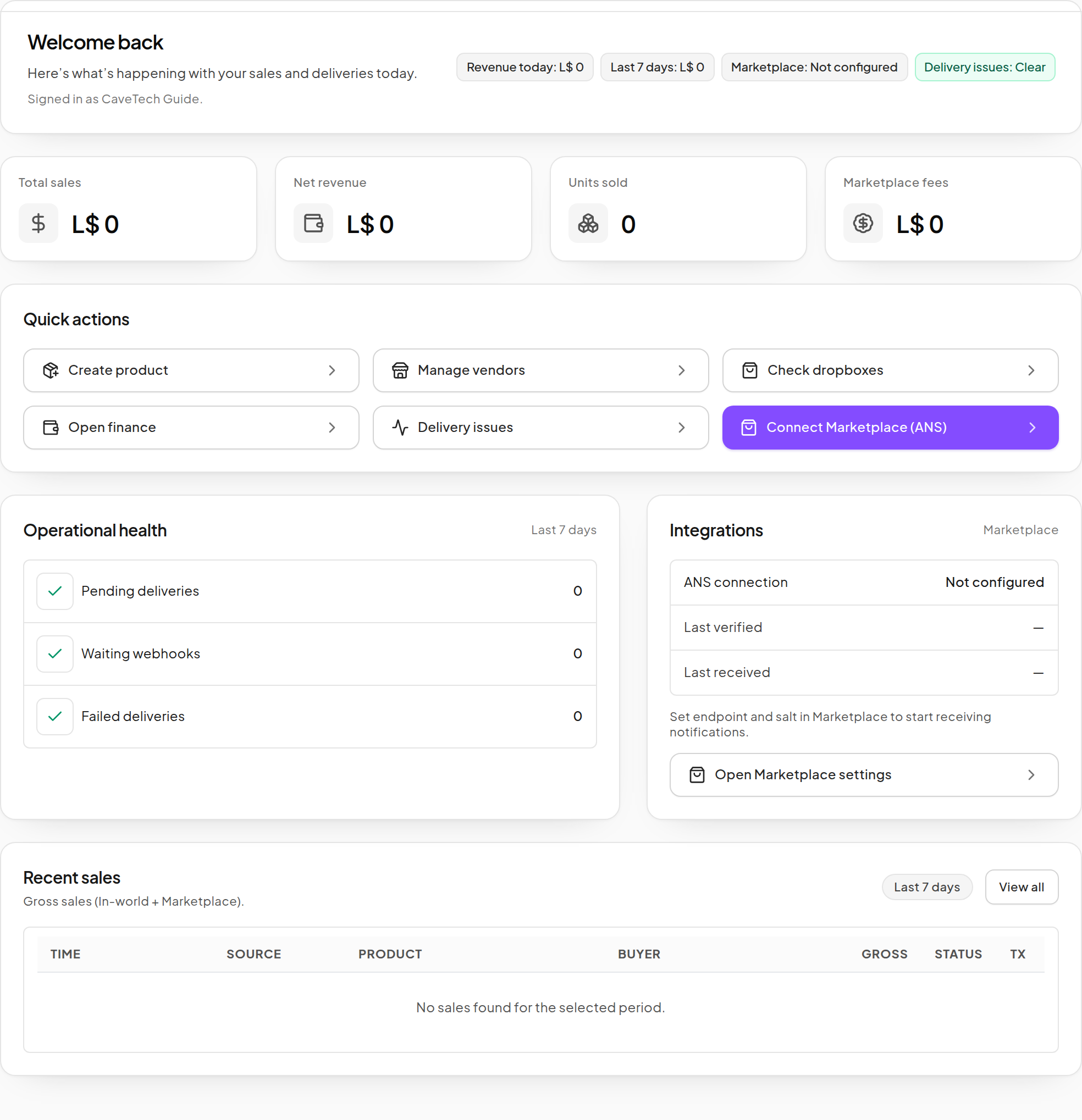
This English guide is available for the store owner's review. Screenshots show the real released interface in a dedicated demonstration account. Example names, inventory records and amounts are illustrative; the account's example objects are offline and its financial reports contain no purchases. Click any image to inspect the original crop.
Start with your first store
Follow First store: setup checklist if you are new to Vendor. The sequence is:
- Create or sign in to your CaveTech account and activate Vendor.
- Set up a Dropbox and synchronize your delivery inventory.
- Create a Product with an item, price and delivery options.
- Set up a Vendor object and assign the Product.
- Check one purchase, its delivery and its financial record.
Understand the parts
| Part | What it does | Where you manage it |
|---|---|---|
| CaveTech account | Identifies the store owner and grants product access. | Central CaveTech login |
| Dropbox | Holds the inventory sent to customers. | Second Life and Dropbox |
| Product | Defines the item or service, price, availability and options. | Products |
| Vendor | Displays and sells an assigned Product in Second Life. | Vendor → Vendors |
| Vendor Group | Organizes your Vendor objects for selection and reporting. | Vendor → Vendors |
| Event | Keeps an ordered wall of Vendors and rotates Products through rounds. | Events |
| Redelivery terminal | Opens a customer's personal purchase recovery page. | Second Life; branding in Redelivery |
A Vendor Group is a dashboard folder. A Second Life group is an in-world group used for membership discounts or access restrictions. They serve different purposes.
Find the guide for your task
| I want to… | Open this guide |
|---|---|
| Add a Product, Demo or service | Create a Product |
| Set stock, a sale window, extras or buyer restrictions | Product options |
| Send an item to one person or update existing customers | Manual delivery and updates |
| Assign Products and organize Vendor objects | Vendors and groups |
| Set display faces and offline/sold-out images | Vendor settings |
| Offer a discount or a coupon code | Discounts · Coupons |
| Run a recurring product wall | Events and rounds |
| Manage customer credit and gift credit Products | Store Credit |
| Understand commission, shares and net proceeds | Understand earnings |
| Export a sales report | Reports and exports |
| Connect Marketplace or import older purchases | Marketplace · Sales history |
| Help a customer who did not receive an item | Delivery issues |
Access and commission
Vendor access is free and does not expire. The commercial mode determines whether eligible Linden Dollar sales carry a CaveTech commission. A weekly paid period pauses that platform commission while active; optional partner shares remain separate.
For example, L$100 paid with a 5% commission and no other deductions leaves L$95. Consult Billing for the current offer and Understand earnings for the full calculation.